Embark on a journey into the world of mobile app development with Flutter, a powerful framework that empowers you to build beautiful, natively compiled applications from a single codebase. This guide, “How to Coding Mobile App with Flutter,” serves as your comprehensive roadmap, providing a detailed exploration of Flutter’s capabilities, from fundamental concepts to advanced techniques. We will explore everything you need to know to create engaging and performant applications for both iOS and Android platforms.
This guide will walk you through the essential steps, from setting up your development environment and mastering the Dart programming language to crafting stunning user interfaces with Flutter widgets and managing application state effectively. You’ll learn how to integrate data from APIs, handle user input, implement animations, and leverage the vast ecosystem of Flutter packages and plugins. Finally, we’ll cover the critical aspects of testing, debugging, and deploying your applications to the Google Play Store and Apple App Store, ensuring your creations reach a global audience.
Introduction to Flutter for Mobile App Development
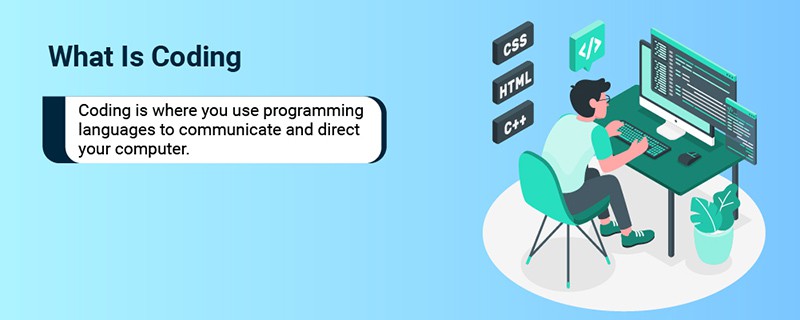
Flutter is a UI toolkit developed by Google for building natively compiled applications for mobile, web, and desktop from a single codebase. It’s designed to be fast, productive, and expressive, allowing developers to create beautiful and performant applications with a modern approach. It emphasizes a declarative programming style, where the UI is described as a function of the current application state.
This contrasts with imperative approaches, making it easier to understand and maintain the application’s visual representation.This section will explore the advantages of using Flutter, its history, and the motivations behind its creation.
Advantages of Using Flutter Over Native Development
Native mobile app development, involving languages like Swift/Objective-C for iOS and Java/Kotlin for Android, has traditionally been the standard. However, Flutter offers several advantages that make it an attractive alternative.Flutter’s cross-platform capabilities are a significant benefit. Instead of writing separate codebases for iOS and Android, developers can use a single codebase to build applications for both platforms. This significantly reduces development time, effort, and cost.
Native development, in contrast, requires separate development teams and codebases for each platform, leading to increased complexity and longer development cycles.Another advantage lies in Flutter’s hot reload feature. This feature allows developers to see changes in the UI almost instantly, without restarting the application. This rapid iteration cycle greatly improves developer productivity. Native development often involves longer build times and a more cumbersome process for seeing changes.Flutter’s performance is another key selling point.
Because Flutter compiles to native ARM code, apps built with Flutter can achieve performance that’s comparable to native apps. This means fast startup times, smooth animations, and responsive user interfaces. Native apps, while also offering excellent performance, may require more optimization efforts to achieve similar results, especially when complex UI elements are involved.Here’s a comparison of the advantages:
- Cross-Platform Development: Flutter allows developers to write code once and deploy it on both iOS and Android, reducing development time and cost. Native development requires separate codebases for each platform.
- Hot Reload: Flutter’s hot reload feature allows developers to see changes in the UI almost instantly, accelerating the development process. Native development typically involves longer build times.
- Performance: Flutter compiles to native ARM code, resulting in excellent performance and responsiveness. Native apps also offer good performance, but may require more optimization.
- UI Consistency: Flutter renders its UI using its own engine, ensuring a consistent look and feel across different devices and platforms. Native apps rely on the UI components provided by the operating system, which can sometimes lead to inconsistencies.
- Expressive UI: Flutter provides a rich set of widgets and tools for building complex and beautiful UIs. Native development can achieve similar results, but often requires more code and effort.
History and Evolution of Flutter
Flutter was created by Google and initially unveiled at the Dart Developer Summit in May 2017. The primary goal was to provide a fast and efficient way to build beautiful and performant mobile applications, particularly addressing the limitations of existing cross-platform solutions at the time. The development team was led by Eric Seidel and others at Google.Flutter’s initial purpose was to address several challenges in mobile app development.
These challenges included:
- Performance: Existing cross-platform frameworks often suffered from performance issues due to the need for bridging between the UI and native code. Flutter aimed to eliminate these performance bottlenecks by compiling to native ARM code.
- UI Consistency: Ensuring a consistent user interface across different devices and platforms was a challenge. Flutter aimed to solve this by providing its own rendering engine, ensuring the same UI appearance regardless of the underlying platform.
- Developer Productivity: Existing development tools and workflows were often slow and cumbersome. Flutter aimed to improve developer productivity through features like hot reload and a declarative programming model.
Flutter has evolved significantly since its initial release.Here’s a timeline of key milestones:
- May 2017: Flutter is first announced at the Dart Developer Summit.
- February 2018: Flutter 1.0 is released, marking the first stable release.
- 2019-2021: Continued updates and feature releases, including support for web and desktop platforms.
- 2022-Present: Ongoing development and refinement, with a focus on performance, stability, and new features, including improvements to the state management and navigation systems.
Flutter has gained widespread adoption since its initial release, with a large and active community contributing to its growth. It is used by many prominent companies and organizations to build their mobile applications. This continued evolution reflects Google’s commitment to the platform and its ongoing investment in improving its capabilities.
Setting Up Your Development Environment
Setting up your development environment is the crucial first step in your Flutter journey. It involves installing the necessary tools and configuring your system to build and run Flutter applications. This section provides a comprehensive guide to help you get started, covering installation across different operating systems, IDE setup, and emulator/simulator configuration.
Installing Flutter and Dart
Before you begin developing with Flutter, you need to install the Flutter SDK and the Dart SDK, which are bundled together. The installation process varies slightly depending on your operating system.
Windows:
To install Flutter on Windows, follow these steps:
- Download the Flutter SDK: Go to the official Flutter website ([https://flutter.dev/docs/get-started/install/windows](https://flutter.dev/docs/get-started/install/windows)) and download the Flutter SDK for Windows. The download will be a zip file.
- Extract the SDK: Extract the downloaded zip file to a directory where you want to install Flutter (e.g.,
C:\src\flutter). Avoid installing it in a directory that requires special permissions. - Update your PATH environment variable:
- Open the Start menu and search for “environment variables”.
- Select “Edit the system environment variables”.
- Click the “Environment Variables…” button.
- Under “System variables”, find the “Path” variable and select it.
- Click “Edit…”.
- Click “New” and add the path to the
flutter\bindirectory (e.g.,C:\src\flutter\bin). - Click “OK” on all the dialogs to save the changes.
- Run
flutter doctor: Open a new Command Prompt or PowerShell window and runflutter doctor. This command checks your environment and displays any dependencies that need to be installed to complete the setup. Follow the instructions provided byflutter doctorto resolve any issues. For example, it might prompt you to install Android Studio or accept Android licenses. - Optional: If you intend to develop for Android, you will need to install Android Studio (see IDE setup below).
macOS:
Here’s how to install Flutter on macOS:
- Download the Flutter SDK: Visit the Flutter website ([https://flutter.dev/docs/get-started/install/macos](https://flutter.dev/docs/get-started/install/macos)) and download the Flutter SDK for macOS. The download will be a zip file.
- Extract the SDK: Extract the downloaded zip file to a directory where you want to install Flutter (e.g.,
/Users/)./development/flutter - Update your PATH environment variable:
- Open your shell configuration file (e.g.,
.zshrc,.bash_profile, or.bashrc). - Add the following line to the file, replacing
export PATH="$PATH:/bin" - Save the file and either restart your terminal or run
source ~/.zshrc(or the appropriate command for your shell) to apply the changes.
- Open your shell configuration file (e.g.,
- Run
flutter doctor: Open a new terminal window and runflutter doctor. This command will analyze your setup and identify any missing dependencies. Follow the instructions to resolve any issues. For example, it may prompt you to install Xcode or accept iOS licenses. - Optional: If you intend to develop for iOS, you will need to install Xcode (see IDE setup below).
Linux:
The installation process for Linux is similar to macOS:
- Download the Flutter SDK: Go to the Flutter website ([https://flutter.dev/docs/get-started/install/linux](https://flutter.dev/docs/get-started/install/linux)) and download the Flutter SDK for Linux. It will be a zip file.
- Extract the SDK: Extract the downloaded zip file to a directory (e.g.,
/home/)./development/flutter - Update your PATH environment variable:
- Open your shell configuration file (e.g.,
.bashrcor.zshrc). - Add the following line to the file, replacing
export PATH="$PATH:/bin" - Save the file and either restart your terminal or run
source ~/.bashrc(or the appropriate command for your shell) to apply the changes.
- Open your shell configuration file (e.g.,
- Install dependencies: You may need to install some dependencies. The exact dependencies vary depending on your Linux distribution. For example, on Ubuntu, you might need to run:
sudo apt-get update && sudo apt-get install clang cmake git curl libgtk-3-dev ninja-build pkg-config liblzma-dev - Run
flutter doctor: Open a new terminal and runflutter doctor. Follow its instructions to resolve any remaining issues.
Setting up an IDE for Flutter Development
Choosing the right IDE (Integrated Development Environment) can significantly improve your Flutter development experience. Two popular options are Visual Studio Code (VS Code) and Android Studio.
Visual Studio Code (VS Code):
VS Code is a lightweight, yet powerful, code editor that’s popular among Flutter developers. To set it up for Flutter development:
- Install VS Code: Download and install VS Code from the official website ([https://code.visualstudio.com/](https://code.visualstudio.com/)).
- Install the Flutter extension:
- Open VS Code.
- Click on the Extensions icon in the Activity Bar on the left (or press Ctrl+Shift+X / Cmd+Shift+X).
- Search for “Flutter” in the Extensions Marketplace.
- Click “Install” on the “Flutter” extension by Dart Code.
- Install the Dart extension (optional, but recommended): The Flutter extension automatically installs the Dart extension, which provides language support for Dart. However, ensure that the Dart extension is enabled.
- Configure VS Code (optional): You can customize VS Code’s settings to improve your workflow. For example, you can set up code formatting, linting, and other features.
Android Studio:
Android Studio is a dedicated IDE for Android development, but it also provides excellent support for Flutter. Here’s how to set it up:
- Install Android Studio: Download and install Android Studio from the official website ([https://developer.android.com/studio](https://developer.android.com/studio)). During installation, make sure to select the “Android SDK” and “Android Virtual Device” components.
- Install the Flutter and Dart plugins:
- Open Android Studio.
- Go to “File” > “Settings” (on Windows/Linux) or “Android Studio” > “Preferences” (on macOS).
- In the settings window, go to “Plugins”.
- Search for “Flutter” and install the Flutter plugin. The Dart plugin is usually installed automatically as a dependency. If not, install it separately.
- Restart Android Studio after installing the plugins.
- Configure Android Studio (optional): Customize your Android Studio settings to your preferences, such as code formatting, theme, and other features.
Creating and Configuring Emulators and Simulators
To test your Flutter applications, you’ll need to set up emulators (for Android) and simulators (for iOS). These allow you to run your app on virtual devices that mimic real-world phones and tablets.
Android Emulator:
Setting up an Android emulator involves using Android Studio’s AVD (Android Virtual Device) Manager:
- Open the AVD Manager:
- In Android Studio, go to “Tools” > “Device Manager”.
- Create a new virtual device:
- Click the “Create device” button.
- Select a hardware profile (e.g., Pixel 6, Nexus 5). Consider screen size, resolution, and performance needs.
- Choose a system image. Select an image with the desired Android version. Choose an image with Google APIs if you plan to use Google services (e.g., Maps). Choose an image with a system image without Google APIs if you do not plan to use them. Choose an image that matches the Android version you are targeting for your application.
- Configure emulator settings:
- Configure the emulator settings, such as the amount of RAM, storage, and startup options. Consider using the recommended settings initially.
- Enable “Use host GPU” for better performance.
- Click “Finish” to create the AVD.
- Run the emulator:
- In the Device Manager, select your created virtual device.
- Click the play button (the green triangle) to launch the emulator.
iOS Simulator:
The iOS Simulator is part of Xcode, so you’ll need Xcode installed to use it. Here’s how to set up and use the iOS Simulator:
- Install Xcode: Download and install Xcode from the Mac App Store. Xcode is a large download, so be patient.
- Open Xcode: Open Xcode for the first time to install any necessary components.
- Open the Simulator:
- Go to “Xcode” > “Open Developer Tool” > “Simulator”.
- Create a new simulator (optional):
- In the Simulator, go to “File” > “New Device”.
- Select a device type (e.g., iPhone 15 Pro, iPad Air).
- Choose the iOS version.
- Click “Create”.
- Select a simulator in VS Code or Android Studio: After opening the simulator, you should be able to select it as a target device within your IDE (VS Code or Android Studio) when running or debugging your Flutter app.
Understanding Dart Programming Language
Dart is the programming language used to build applications with Flutter. Understanding Dart is crucial for mobile app development using Flutter, as it provides the foundation for writing efficient, maintainable, and performant code. This section will delve into the core concepts of Dart, equipping you with the knowledge to begin developing your own Flutter applications.
Fundamental Concepts of Dart: Variables, Data Types, and Operators
Dart is a statically typed language, which means that the type of a variable must be known at compile time. This helps catch errors early and improves code readability.Dart supports various data types:
- Numbers: Represent numerical values. Dart has two built-in numeric types:
intfor integers anddoublefor floating-point numbers. - Strings: Represent sequences of characters. Strings in Dart are immutable, meaning they cannot be changed after creation.
- Booleans: Represent logical values, either
trueorfalse. - Lists: Ordered collections of objects. Lists can contain elements of the same type or different types.
- Maps: Collections of key-value pairs. Keys must be unique, and values can be of any type.
Variables are declared using the var , or by specifying the data type explicitly. For example:
var age = 30; // Type is inferred as int
String name = "John Doe";
bool isStudent = true;
double height = 1.75;
Dart also supports operators for performing various operations:
- Arithmetic Operators:
+(addition),-(subtraction),*(multiplication),/(division),%(modulo). - Relational Operators:
==(equal to),!=(not equal to),>(greater than),<(less than),>=(greater than or equal to),<=(less than or equal to). - Logical Operators:
&&(and),||(or),!(not). - Assignment Operators:
=(assign),+=(add and assign),-=(subtract and assign),*=(multiply and assign),/=(divide and assign),%=(modulo and assign).
Control Flow Statements in Dart: If/Else and Loops
Control flow statements allow you to control the order in which your code is executed. Dart provides several control flow statements, including if/else statements and loops.
The if/else statement executes a block of code based on a condition. The else block provides an alternative execution path if the condition is false.
if (age >= 18)
  print("Eligible to vote");
 else
  print("Not eligible to vote");
Dart supports the following loop statements:
- For Loop: Iterates over a sequence of values.
- While Loop: Executes a block of code as long as a condition is true.
- Do-While Loop: Executes a block of code at least once, and then continues to execute as long as a condition is true.
- For-In Loop: Iterates over the elements of a collection, such as a list or map.
Example of a for loop:
for (var i = 0; i < 5; i++)
  print(i); // Prints numbers from 0 to 4
Example of a while loop:
var count = 0;
while (count < 3)
  print("Count: $count");
  count++;
Common Dart Libraries and Their Purposes for Mobile App Development
Dart libraries provide pre-built functionality that simplifies development. Understanding and utilizing these libraries can significantly speed up the development process.
Here are some common Dart libraries and their purposes for mobile app development:
- dart:core: This is the core library that is automatically imported in every Dart program. It provides fundamental classes, interfaces, and functions, including basic data types (
String,int,double,bool), collections (List,Map), and utility functions. - dart:async: Provides support for asynchronous programming, including classes like
FutureandStream. This library is essential for handling tasks that may take time to complete, such as network requests or file I/O, without blocking the main thread. - dart:convert: Offers encoding and decoding functionality, including JSON (JavaScript Object Notation) serialization and deserialization, as well as character encoding conversions (e.g., UTF-8). This is crucial for working with data formats commonly used in mobile app development, such as communicating with APIs.
- dart:io: Provides input/output functionality, including file system access, network programming, and command-line interaction. This library is useful for tasks such as reading and writing files, making HTTP requests, and interacting with the operating system.
- package:flutter/material.dart: This is the core Flutter library, which provides the widgets and classes needed to build user interfaces. It includes widgets for layouts, displaying text, images, buttons, and handling user input.
- package:http: A popular third-party library for making HTTP requests. It simplifies the process of interacting with REST APIs, allowing you to retrieve and send data to servers.
- package:shared_preferences: A third-party library for storing simple key-value pairs persistently on the device. This is commonly used to save user preferences and settings.
- package:provider: A state management library that helps manage the state of your Flutter application. It provides a simple and efficient way to propagate changes to the UI when data changes.
- package:get: Another popular state management library. Get provides a set of powerful features including state management, dependency injection, route management, and internationalization.
Flutter Widgets: The Building Blocks
Flutter’s power lies in its widget-based architecture. Everything you see on the screen is a widget, from the smallest text label to the entire application screen. Understanding widgets is fundamental to building Flutter applications. This section delves into the different types of widgets and explores essential layout and UI widgets.
Types of Flutter Widgets and Their Uses
Flutter offers various widget types, each serving a specific purpose. These widgets can be broadly categorized based on their behavior and how they manage their state. Knowing the differences between them is crucial for effective app development.
- StatelessWidget: Stateless widgets are immutable, meaning their properties cannot change after they are built. They are used for UI elements that do not need to update based on user interaction or data changes. Examples include static text, images, and icons. They are efficient because they only need to be built once.
- StatefulWidget: Stateful widgets are mutable, meaning their properties can change over time. They are used for UI elements that need to react to user input, data updates, or other dynamic changes. Examples include forms, interactive buttons, and widgets that display data fetched from an API. They manage their state using a `State` object.
- InheritedWidget: Inherited widgets provide a way to propagate data down the widget tree. They are used to share data efficiently with multiple widgets without explicitly passing it down through the constructor of each widget. They are useful for providing application-wide configurations, themes, or user authentication information.
- AnimatedWidget: Animated widgets simplify creating animations. They automatically rebuild themselves when their animation value changes, allowing for smooth and efficient animations. Examples include widgets that fade in, slide, or scale.
Essential Layout Widgets and Functionalities
Layout widgets are fundamental to structuring the UI of a Flutter application. They control how other widgets are positioned and sized on the screen. The choice of layout widget depends on the desired visual arrangement.
The following table illustrates essential layout widgets and their functionalities:
| Widget | Functionality | Example Use Case |
|---|---|---|
| Column | Arranges its children vertically. | Creating a screen with a title, description, and a button stacked vertically. |
| Row | Arranges its children horizontally. | Displaying a row of icons or images. |
| Container | A versatile widget for styling and layout. Allows you to add padding, margin, borders, and background colors to its child. | Creating a card with a shadow effect, padding, and a background color. |
| Center | Centers its child within itself. | Centering a text widget or an image within a larger container. |
| Padding | Adds space around its child. | Adding padding around the content of a card. |
| Expanded | Allows a child to expand to fill available space within a Row or Column. | Creating a layout where some widgets take up a fixed amount of space, and others fill the remaining space. |
| SizedBox | Forces its child to have a specific size. | Creating a gap between widgets or controlling the size of an image. |
Basic UI Widgets: Text, Image, and Button
Basic UI widgets are the building blocks for creating user interfaces. They provide the fundamental elements for displaying text, images, and enabling user interaction. These widgets are commonly used in almost every Flutter application.
- Text: The `Text` widget displays a string of text. It can be customized with various properties like font size, color, style, and alignment. For example:
Text('Hello, Flutter!', style: TextStyle(fontSize: 24, color: Colors.blue),)
This code creates a text widget displaying “Hello, Flutter!” in a blue color and a font size of 24.
- Image: The `Image` widget displays images. Images can be loaded from various sources, including assets, network URLs, or local files. For example:
Image.asset('images/my_image.png')
This code displays an image from the “images/my_image.png” asset file.
- Button: Buttons allow users to interact with the application. Flutter provides several button types, including `ElevatedButton`, `TextButton`, and `ArtikeldButton`. They all respond to user taps and trigger actions. For example:
ElevatedButton(onPressed: () // Handle button press , child: Text('Click Me'),)
This code creates an elevated button with the text “Click Me”. The `onPressed` property defines the function to be executed when the button is tapped.
Layout and UI Design in Flutter
Designing the user interface (UI) is a critical aspect of mobile app development. A well-designed UI enhances user experience, making the app intuitive and enjoyable to use. Flutter provides a rich set of tools and widgets to create visually appealing and responsive layouts. This section will explore techniques for creating responsive layouts, implementing themes and styles, and utilizing navigation patterns within Flutter applications.
Creating Responsive Layouts
Responsive layouts are essential for ensuring that your app looks and functions correctly across various screen sizes and devices. Flutter offers several widgets and approaches to achieve responsiveness.To build responsive layouts, Flutter utilizes constraints and flexible widgets to adapt to different screen sizes and orientations.
- Understanding Constraints: Constraints define the available space for a widget. Flutter widgets use constraints to determine their size and position. Parent widgets pass constraints to their children, and children use these constraints to determine their own size. For example, a `Container` widget uses its constraints to determine its width and height.
- Flexible Widgets: Flexible widgets, such as `Row`, `Column`, and `Expanded`, help create layouts that adapt to available space.
- `Row` and `Column`: These widgets arrange their children horizontally (`Row`) or vertically (`Column`). You can control the alignment and distribution of child widgets within these layouts.
- `Expanded`: The `Expanded` widget allows a child to expand to fill the available space within a `Row` or `Column`. It’s particularly useful for creating layouts where some widgets should take up a proportional amount of space. For instance, if you have a `Row` with three children, and one child is wrapped in an `Expanded` widget, that child will take up all remaining space after the other two children have taken up their required space.
- Using `LayoutBuilder`: The `LayoutBuilder` widget provides access to the constraints of its parent. This allows you to build different layouts based on the available space. For example, you could use `LayoutBuilder` to switch between a horizontal layout on larger screens and a vertical layout on smaller screens.
- Media Queries: Media queries allow you to query the device’s characteristics, such as screen size and orientation. This information can be used to conditionally render different layouts or apply different styles.
Example:
MediaQuery.of(context).size.widthreturns the screen width.
Implementing Themes and Styles
Themes and styles provide a consistent look and feel across your application, making it easier to maintain and update your UI.To implement themes and styles in Flutter, use the `Theme` widget and define reusable styles.
- The `Theme` Widget: The `Theme` widget is used to define the overall theme of your app. This includes colors, fonts, and other styling properties. You typically wrap your entire app or specific parts of your app with a `Theme` widget.
- Defining a Theme: Create a `ThemeData` object to define your theme. This object contains various properties, such as `primaryColor`, `accentColor`, `textTheme`, and `iconTheme`.
Example:
ThemeData(primarySwatch: Colors.blue, fontFamily: 'Roboto') - Accessing the Theme: You can access the current theme using `Theme.of(context)`. This allows you to access theme properties within your widgets.
Example:
Theme.of(context).primaryColor - Creating Reusable Styles: Define reusable styles using `TextStyle` and `ButtonStyle` objects. This helps to maintain consistency and reduces code duplication. For example, you can create a `TextStyle` for headings and reuse it throughout your app.
Implementing Navigation Patterns
Navigation is crucial for allowing users to move between different screens and sections of your app. Flutter provides several navigation patterns to manage the user’s flow.To implement navigation patterns, you can use routing, tabs, and other navigation elements.
- Routing with `Navigator`: The `Navigator` widget manages a stack of routes. You can push new routes onto the stack to navigate to new screens and pop routes off the stack to go back.
- Pushing a Route: Use `Navigator.push()` to navigate to a new screen.
Example:
Navigator.push(context, MaterialPageRoute(builder: (context) => SecondScreen())); - Popping a Route: Use `Navigator.pop()` to go back to the previous screen.
Example:
Navigator.pop(context);
- Pushing a Route: Use `Navigator.push()` to navigate to a new screen.
- Named Routes: Named routes provide a more organized way to manage navigation. You define a map of route names to their corresponding screen builders.
- Defining Routes: Define your routes in the `MaterialApp` widget using the `routes` property.
Example:
routes: '/home': (context) => HomeScreen(), '/details': (context) => DetailsScreen(), - Navigating with Named Routes: Use `Navigator.pushNamed()` to navigate to a named route.
Example:
Navigator.pushNamed(context, '/details');
- Defining Routes: Define your routes in the `MaterialApp` widget using the `routes` property.
- Tabs: Tabs are a common navigation pattern for organizing content into different sections. Flutter provides the `TabBar` and `TabBarView` widgets to implement tabs.
- `TabBar`: Displays the tab labels.
- `TabBarView`: Displays the content associated with each tab.
- `DefaultTabController`: Manages the state of the tabs, including the currently selected tab. You typically wrap your `Scaffold` widget with a `DefaultTabController`.
State Management in Flutter
State management is a crucial aspect of Flutter app development, determining how your application’s data is handled and updated across different widgets. Choosing the right state management solution is essential for building scalable, maintainable, and performant applications. This section will explore various state management approaches in Flutter, comparing their strengths and weaknesses, and demonstrating a practical example using Provider.
Understanding State Management Approaches
State management involves techniques and strategies for managing the data that drives a Flutter application’s UI. Different approaches offer varying levels of complexity, flexibility, and performance. Understanding these options enables developers to select the best fit for their project’s requirements.
- setState: The simplest state management approach, built directly into Flutter’s `StatefulWidget`. It’s suitable for managing state within a single widget or a small number of widgets. When `setState()` is called, Flutter rebuilds the widget and its children.
- Provider: A popular and relatively simple state management solution built on top of Flutter’s `InheritedWidget`. Provider makes it easy to access and update state from anywhere in the widget tree. It promotes a reactive programming style, where widgets automatically rebuild when the state they depend on changes.
- Riverpod: A more advanced and type-safe version of Provider, offering improved performance and enhanced features like dependency injection and asynchronous state management. Riverpod aims to address some of the limitations of Provider, such as the potential for rebuild issues.
- BLoC/Cubit: A more complex, yet powerful, approach based on the Business Logic Component (BLoC) pattern. BLoC and Cubit use streams to manage state, separating the presentation layer (UI) from the business logic. This approach promotes code reusability, testability, and separation of concerns. Cubit is a simplified version of BLoC, often preferred for simpler state management needs.
Comparing State Management Solutions
Each state management solution presents its own set of advantages and disadvantages. The best choice depends on the complexity of the application, the team’s experience, and the desired level of control and maintainability.
| State Management Solution | Pros | Cons |
|---|---|---|
| setState | Simple to implement, built-in to Flutter. | Not suitable for complex applications, can lead to performance issues with frequent rebuilds, limited reusability. |
| Provider | Relatively easy to learn and use, good for medium-sized applications, promotes reactive programming, supports dependency injection. | Can sometimes lead to rebuild issues if not used carefully, potential for boilerplate code. |
| Riverpod | Type-safe, improved performance compared to Provider, supports dependency injection, excellent for complex applications, easier to test. | Steeper learning curve than Provider. |
| BLoC/Cubit | Highly scalable and maintainable, excellent for large and complex applications, promotes separation of concerns, facilitates testability, good for complex business logic. | Steeper learning curve, requires more boilerplate code, more complex to implement for simple applications. |
Implementing a Simple State Management Solution using Provider
Provider offers a straightforward way to manage state in Flutter. The following example demonstrates how to implement a simple counter application using Provider. This application allows users to increment and decrement a counter displayed on the screen.
1. Project Setup: Create a new Flutter project.
2. Add Provider Dependency: Add the `provider` package to your `pubspec.yaml` file:
dependencies:
  flutter:
    sdk: flutter
  provider: ^6.0.0 # Use the latest version
Then, run `flutter pub get` in your terminal.
3. Create a Counter Class: Define a class that extends `ChangeNotifier` to hold the counter value and notify listeners when the value changes.
import 'package:flutter/foundation.dart';

class Counter with ChangeNotifier
  int _count = 0;

  int get count => _count;

  void increment()
    _count++;
    notifyListeners(); // Notify all listening widgets


  void decrement()
    _count--;
    notifyListeners();
4. Wrap the App with `ChangeNotifierProvider`: Wrap your main `MaterialApp` widget with a `ChangeNotifierProvider` to make the `Counter` class available to the entire application.
import 'package:flutter/material.dart';
import 'package:provider/provider.dart';
import 'counter.dart';

void main()
  runApp(
    ChangeNotifierProvider(
      create: (context) => Counter(), // Create an instance of Counter
      child: MyApp(),
    ),
  );


class MyApp extends StatelessWidget
  @override
  Widget build(BuildContext context)
    return MaterialApp(
      title: 'Flutter Counter App',
      theme: ThemeData(
        primarySwatch: Colors.blue,
      ),
      home: MyHomePage(),
    );
5.
Build the UI: In your `MyHomePage` widget, use `Consumer` to access the `Counter` instance and update the UI when the counter value changes. Also, use `Provider.of
import 'package:flutter/material.dart';
import 'package:provider/provider.dart';
import 'counter.dart';

class MyHomePage extends StatelessWidget
  @override
  Widget build(BuildContext context)
    return Scaffold(
      appBar: AppBar(
        title: Text('Flutter Counter App'),
      ),
      body: Center(
        child: Column(
          mainAxisAlignment: MainAxisAlignment.center,
          children: [
            Text(
              'You have pushed the button this many times:',
            ),
            Consumer(
              builder: (context, counter, child)
                return Text(
                  '$counter.count',
                  style: Theme.of(context).textTheme.headline4,
                );
              ,
            ),
          ],
        ),
      ),
      floatingActionButton: Column(
        mainAxisAlignment: MainAxisAlignment.end,
        children: [
          FloatingActionButton(
            onPressed: () => Provider.of(context, listen: false).increment(),
            tooltip: 'Increment',
            child: Icon(Icons.add),
          ),
          SizedBox(height: 16),
          FloatingActionButton(
            onPressed: () => Provider.of(context, listen: false).decrement(),
            tooltip: 'Decrement',
            child: Icon(Icons.remove),
          ),
        ],
      ),
    );
6. Explanation:
- `ChangeNotifierProvider` provides an instance of the `Counter` class to the entire application.
- `Consumer` rebuilds the UI only when the counter value changes, optimizing performance.
- `Provider.of
(context, listen: false)` is used within the `onPressed` methods to call the `increment` and `decrement` methods on the `Counter` instance without listening to changes (because we only want to
-trigger* the action, not rebuild the UI).
This simple example demonstrates the core concepts of state management using Provider. It provides a clear illustration of how to manage a simple state and update the UI accordingly, offering a solid foundation for understanding more complex state management scenarios.
Building Interactive User Interfaces

Creating interactive user interfaces is central to mobile app development. Flutter provides a robust framework for handling user input, implementing animations, and integrating various UI elements to build engaging and responsive applications. This section delves into these aspects, equipping you with the knowledge to craft dynamic and user-friendly mobile experiences.
Handling User Input
User interaction is fundamental to any mobile application. Flutter offers widgets and techniques to capture and respond to user actions.
- Text Fields: Text fields allow users to input text. The `TextField` widget is used for this purpose. It supports various properties like `controller` (for managing text), `keyboardType` (for specifying the input type, such as text, number, or email), and `decoration` (for customizing the appearance).
- Buttons: Buttons trigger actions when tapped. Flutter provides different button types, including `ElevatedButton`, `TextButton`, and `ArtikeldButton`. Each has a different visual style and purpose. They all share a common `onPressed` callback, which is executed when the button is pressed.
- Gestures: Gestures recognize user interactions like taps, swipes, and long presses. The `GestureDetector` widget is used to detect gestures. You can specify callbacks for different gesture types, such as `onTap`, `onHorizontalDragStart`, and `onLongPress`.
Example of a simple `TextField` and `ElevatedButton`:“`dartimport ‘package:flutter/material.dart’;class MyForm extends StatefulWidget @override _MyFormState createState() => _MyFormState();class _MyFormState extends State
Implementing Animations and Transitions in Flutter
Animations and transitions significantly enhance the user experience, making apps feel more polished and engaging. Flutter offers powerful animation capabilities.
- Implicit Animations: Flutter provides implicit animations through widgets like `AnimatedContainer`, `AnimatedOpacity`, and `AnimatedPadding`. These widgets automatically animate changes to their properties. You specify the target values, and Flutter handles the animation.
- Explicit Animations: For more control, you can use explicit animations with `AnimationController` and `Tween`. This allows you to create complex animations and control their duration, timing, and curves.
- Transitions: Transitions involve moving between different screens or states. Flutter’s `Navigator` class facilitates screen transitions, and you can customize them with animation effects.
Example of a simple `AnimatedContainer`:“`dartimport ‘package:flutter/material.dart’;class AnimatedContainerExample extends StatefulWidget @override _AnimatedContainerExampleState createState() => _AnimatedContainerExampleState();class _AnimatedContainerExampleState extends State
Integrating UI Elements
Flutter allows for the seamless integration of different UI elements to build complex and functional layouts.
- Lists: Lists display a series of items. The `ListView` widget is used for creating scrollable lists. You can customize list items with different widgets and layouts.
- Forms: Forms collect user input. Flutter provides the `Form` and `TextFormField` widgets for building forms. You can use validation to ensure that the user input meets certain criteria.
- Navigation: Navigating between different screens is crucial. Flutter’s `Navigator` class enables screen transitions, and you can use routes to manage the navigation stack.
Example of a `ListView`:“`dartimport ‘package:flutter/material.dart’;class ListViewExample extends StatelessWidget @override Widget build(BuildContext context) return Scaffold( appBar: AppBar(title: Text(‘ListView Example’)), body: ListView.builder( itemCount: 10, itemBuilder: (context, index) return ListTile( title: Text(‘Item $index + 1’), subtitle: Text(‘Subtitle for item $index + 1’), leading: Icon(Icons.star), ); , ), ); “`This code creates a scrollable list of items using `ListView.builder`.
Each item in the list is a `ListTile` with a title, subtitle, and icon. This structure allows for the efficient display of a large number of items.
Flutter Packages and Plugins

Flutter’s vibrant ecosystem is one of its greatest strengths, allowing developers to leverage pre-built code to accelerate development and add complex functionalities to their apps. Packages and plugins are essential components of this ecosystem. Packages are reusable pieces of code, written in Dart, that extend the functionality of your Flutter application. Plugins, on the other hand, are platform-specific code that provides access to native device features like the camera, GPS, or Bluetooth.
Using packages and plugins effectively is a cornerstone of efficient Flutter development.
Finding and Using Flutter Packages and Plugins
The official source for Flutter packages and plugins is pub.dev, the Dart package repository. It’s a comprehensive resource where you can search for packages, read their documentation, and understand their usage. Finding the right package involves a few key steps.* Search: Use s related to the functionality you need (e.g., “http”, “image picker”, “geolocation”).
Review
Carefully examine the package’s description, pub score (which indicates package quality and popularity), and documentation.
Check Compatibility
Ensure the package supports the Flutter version you are using.
Examine Usage
Look at the example code provided to understand how to integrate the package into your project.
Assess Maintainability
Consider how recently the package has been updated and the number of contributors to gauge its ongoing support.
Useful Packages for Common Tasks
A wide range of packages are available to address various development needs. These packages significantly reduce development time and effort by providing ready-to-use solutions.* Networking:
`http`
A powerful package for making HTTP requests, essential for fetching data from APIs and interacting with web services. It supports various HTTP methods (GET, POST, PUT, DELETE) and provides features for handling request and response headers, as well as error handling.
Image Loading
`cached_network_image`
Simplifies loading images from URLs, caching them for performance, and providing placeholders for loading states. It optimizes image loading, improving app responsiveness.
`image_picker`
Allows users to select images from their device’s gallery or capture them with the camera.
State Management
`provider`
A simple and effective state management solution that allows you to share state across different widgets, making it easy to manage and update application data.
`Riverpod`
A robust state management solution, providing a more type-safe and flexible alternative to `provider`.
`Bloc` and `Cubit`
State management solutions based on the Bloc pattern. They provide a structured approach to managing complex application states, improving code organization and testability.
Local Storage
`shared_preferences`
Provides a simple way to store key-value pairs persistently on the device, suitable for storing user preferences or simple data.
`sqflite`
A SQLite plugin for Flutter, enabling the creation and management of local databases for storing more complex data.
Navigation
`go_router`
A declarative routing package that makes it easy to manage navigation in Flutter apps.
JSON Serialization
`json_annotation` and `json_serializable`
Facilitate the conversion of Dart objects to and from JSON, reducing the boilerplate code needed for data serialization and deserialization.
UI and Styling
`flutter_screenutil`
A package for responsive UI design. It helps developers create user interfaces that adapt to different screen sizes, improving the user experience across various devices.
`google_fonts`
Provides easy access to Google Fonts, allowing developers to integrate custom fonts into their Flutter applications.
Other Useful Packages
`url_launcher`
Enables launching URLs, email addresses, phone numbers, and other apps on the device.
`intl`
Provides internationalization support, including date, time, and number formatting.
Adding Packages to Your Flutter Project
Adding packages to your Flutter project is straightforward using the `pubspec.yaml` file. This file contains the project’s metadata and dependencies.
1. Locate `pubspec.yaml`
Find the `pubspec.yaml` file in the root directory of your Flutter project.
2. Add the Package
Under the `dependencies:` section, add the package name and its version. You can find the latest version on pub.dev. For example, to add the `http` package: “`yaml dependencies: flutter: sdk: flutter http: ^0.13.6 # Replace with the latest version “`
3. Save the File
Save the `pubspec.yaml` file.
4. Get Packages
After saving, run `flutter pub get` in your terminal from the project’s root directory. This command downloads the package and its dependencies. Alternatively, many IDEs, such as Android Studio and VS Code, automatically run `flutter pub get` when you save the `pubspec.yaml` file.
5. Import the Package
In your Dart code, import the package using the `import` statement: “`dart import ‘package:http/http.dart’ as http; “` This allows you to use the package’s functionality in your code.
6. Use the Package
Follow the package’s documentation to use its features. For example, using the `http` package to make a GET request: “`dart import ‘package:http/http.dart’ as http; import ‘dart:convert’; Future
Testing and Debugging Flutter Apps
Testing and debugging are crucial components of the mobile app development lifecycle. They ensure that the application functions as intended, meets user expectations, and is free from errors. Rigorous testing and effective debugging not only improve the quality of the app but also enhance the user experience and reduce the likelihood of costly post-release fixes. This section delves into the importance of testing and provides practical guidance on how to effectively test and debug Flutter applications.
Importance of Testing in Mobile App Development
Testing is an essential practice in mobile app development that ensures the reliability, functionality, and usability of an application. Comprehensive testing offers several significant benefits.
- Quality Assurance: Testing helps identify and rectify bugs, errors, and inconsistencies, leading to a higher-quality product.
- User Satisfaction: By ensuring the app functions correctly and provides a seamless user experience, testing contributes to greater user satisfaction.
- Reduced Development Costs: Catching and fixing bugs early in the development cycle is more cost-effective than addressing them after the app has been released.
- Performance Optimization: Testing helps identify performance bottlenecks and areas for optimization, leading to a faster and more responsive app.
- Security Enhancement: Testing can reveal security vulnerabilities, allowing developers to address them and protect user data.
Writing Unit Tests and Widget Tests in Flutter
Flutter provides a robust testing framework that supports various testing methodologies, including unit tests and widget tests. Unit tests verify the functionality of individual units of code, such as functions or classes, while widget tests verify the behavior of UI components.
Unit Tests:
Unit tests focus on testing individual functions, methods, or classes in isolation. They ensure that each unit of code behaves as expected under various conditions. For example, consider a function that calculates the sum of two numbers:
    int add(int a, int b)

      return a + b;
A unit test for this function would verify that it correctly calculates the sum for different inputs:
    import 'package:flutter_test/flutter_test.dart';

    import 'your_file.dart'; // Replace with your file name
void main()
test('add function should return the correct sum', ()
expect(add(2, 3), equals(5));
expect(add(-1, 1), equals(0));
expect(add(0, 0), equals(0));
);
This test uses the flutter_test package and the expect function to assert that the result of the add function matches the expected value. If the assertion fails, the test will fail, indicating an issue with the function’s implementation.
Widget Tests:
Widget tests verify the behavior of UI components. They simulate user interactions and check that the widgets render and respond to events correctly. For example, consider a simple counter widget:
import 'package:flutter/material.dart';
class CounterWidget extends StatefulWidget
@override
_CounterWidgetState createState() => _CounterWidgetState();
class _CounterWidgetState extends State
int _counter = 0;
void _incrementCounter()
setState(()
_counter++;
);
@override
Widget build(BuildContext context)
return Scaffold(
appBar: AppBar(title: Text('Counter App')),
body: Center(
child: Column(
mainAxisAlignment: MainAxisAlignment.center,
children:
Text('You have pushed the button this many times:'),
Text(
'$_counter',
style: Theme.of(context).textTheme.headlineMedium,
),
],
),
),
floatingActionButton: FloatingActionButton(
onPressed: _incrementCounter,
tooltip: 'Increment',
child: Icon(Icons.add),
),
);
A widget test for this counter widget would verify that the counter increments when the button is pressed:
    import 'package:flutter/material.dart';

    import 'package:flutter_test/flutter_test.dart';

    import 'counter_widget.dart'; // Replace with your file name
void main()
testWidgets('Counter increments on tap', (WidgetTester tester) async
// Build our app and trigger a frame.
await tester.pumpWidget(MaterialApp(home: CounterWidget()));
// Verify that our counter starts at 0.
expect(find.text('0'), findsOneWidget);
expect(find.text('1'), findsNothing);
// Tap the '+' icon and trigger a frame.
await tester.tap(find.byIcon(Icons.add));
await tester.pump();
// Verify that our counter has incremented.
expect(find.text('0'), findsNothing);
expect(find.text('1'), findsOneWidget);
);
This test uses the flutter_test package and the WidgetTester to simulate user interactions. It finds the widget by its text or icon and then simulates a tap. After each interaction, tester.pump() is called to rebuild the widget tree and update the UI. The test then uses expect to assert that the UI has updated as expected.
Debugging Flutter Apps Using the IDE and Debugging Tools
Flutter provides powerful debugging tools integrated into popular IDEs, such as Android Studio and VS Code. These tools allow developers to identify and resolve issues in their code efficiently.
- Setting Breakpoints: Breakpoints allow developers to pause the execution of the app at specific lines of code. This enables them to inspect the state of the application, examine variables, and step through the code line by line.
- Inspecting Variables: During debugging, developers can inspect the values of variables, objects, and data structures to understand the app’s state and identify the source of errors.
- Using the Debug Console: The debug console provides a way to view log messages, error messages, and other information generated by the app. It also allows developers to execute code snippets and evaluate expressions during debugging.
- Hot Reload and Hot Restart: Flutter’s hot reload feature allows developers to quickly update the UI without restarting the app, which speeds up the debugging process. Hot restart completely restarts the app.
- Performance Profiling: Flutter provides tools to profile the app’s performance, identifying areas where optimization is needed. This helps developers to improve the app’s responsiveness and efficiency.
Example:
Imagine a situation where a user interface element isn’t displaying correctly. To debug this, a developer would:
- Set a breakpoint: Place a breakpoint at the line of code where the UI element is being constructed.
- Run in debug mode: Start the Flutter app in debug mode from the IDE. The app will pause at the breakpoint.
- Inspect variables: Examine the variables involved in creating the UI element to ensure that they have the expected values.
- Step through the code: Use the debugger’s step-over, step-in, and step-out features to navigate through the code, line by line, and observe how the UI element is being created.
- Analyze the output: Use the debug console to look for any error messages or warnings that might be related to the issue.
By using these debugging techniques, developers can quickly identify and fix issues, ensuring that the app functions correctly and provides a smooth user experience.
Deployment and Publishing

Deploying your Flutter application to the Google Play Store and Apple App Store is the final step in bringing your app to users worldwide. This process involves preparing your app for release, generating the necessary build files, and navigating the specific requirements of each app store. Careful attention to detail during deployment ensures a smooth user experience and successful app launch.
Preparing Your Flutter App for Deployment
Before deploying your Flutter app, several crucial steps ensure a successful launch on both iOS and Android platforms. These preparations involve configuring your project, generating necessary certificates, and adhering to platform-specific guidelines.
- Platform-Specific Configurations: You must configure platform-specific settings. For iOS, this involves setting up your app’s bundle identifier, signing certificates, and provisioning profiles within Xcode. For Android, configure the application ID, version code, and signing keys in your `build.gradle` files.
- Code Optimization: Optimize your code for release. This includes removing debug statements, enabling code minification (shrinking the size of your app), and using optimized images.
- App Icon and Metadata: Prepare your app icon, screenshots, and app store descriptions. These elements are critical for attracting users and accurately representing your app. Adhere to each platform’s guidelines regarding image sizes and formats.
- Testing: Thoroughly test your app on various devices and screen sizes, and address any bugs or performance issues. Beta testing programs can provide valuable feedback before the official release.
- Legal Requirements: Ensure you comply with all legal requirements, including privacy policies, terms of service, and any necessary data collection disclosures.
Generating App Bundles and APK Files (Android)
Android applications are distributed in two primary formats: Android App Bundles (AAB) and Android Package (APK) files. Understanding the differences and the process of generating each is vital for Android deployment.
- Android App Bundle (AAB): This is Google’s recommended publishing format. It allows Google Play to generate optimized APKs for each user’s device configuration, reducing the app’s download size and improving installation speed.
- Android Package (APK): This is the traditional format. It is a single file containing all the code, resources, and assets needed to install your app.
- Generating AAB: To generate an AAB, run the following command in your Flutter project’s root directory:
flutter build appbundle. This will create an `app-release.aab` file in the `build/app/outputs/bundle/release/` directory. - Generating APK: To generate an APK, you can use the command:
flutter build apk. This will produce an APK file. Alternatively, you can build a release APK by runningflutter build apk --release. This creates an APK in the `build/app/outputs/apk/release/` directory. - Signing Your App: For both AAB and APK, you must sign your app with a release key. This key uniquely identifies your app and allows Google Play to verify its authenticity. You’ll need to generate a keystore file using the `keytool` utility provided with the Java Development Kit (JDK).
Publishing Your App to the Google Play Store
Publishing your Flutter app on the Google Play Store involves creating a developer account, preparing your app for submission, and managing the release process.
- Google Play Developer Account: Create a Google Play Developer account. This requires a one-time registration fee.
- Prepare Your App:
- Create a Google Play Console listing.
- Upload your AAB file to the Play Console.
- Complete all required store listing details (app name, description, screenshots, etc.).
- Set up your app’s pricing and distribution options.
- Configure release tracks (e.g., internal testing, closed testing, open testing, production).
- Release Management:
- Choose a release track (internal, closed, open, or production) to deploy your app.
- Google Play will review your app for compliance with its policies.
- Monitor your app’s performance and user feedback after launch.
- Key Considerations:
- App Signing: Ensure your app is signed with a valid key.
- Target API Level: Set the correct target API level in your `build.gradle` file.
- Privacy Policy: Provide a clear and accessible privacy policy if your app collects user data.
Publishing Your App to the Apple App Store
Publishing your Flutter app on the Apple App Store involves similar steps to the Google Play Store, but with platform-specific requirements and tools.
- Apple Developer Account: You need an Apple Developer account, which requires an annual fee.
- Prepare Your App:
- Configure your app in App Store Connect (Apple’s portal for managing apps).
- Create an App ID and configure your app’s capabilities.
- Prepare your app’s metadata (app name, description, screenshots, etc.).
- Build and Archive Your App:
- Build your app for release using Xcode.
- Archive your app to create an `.ipa` file.
- Upload to App Store Connect:
- Upload the `.ipa` file to App Store Connect using Xcode’s built-in tools or the Application Loader.
- Complete the required information in App Store Connect, including pricing and distribution settings.
- App Review: Apple will review your app for compliance with its guidelines.
- Release Your App:
- Once approved, you can release your app to the App Store.
- Monitor your app’s performance and user feedback after launch.
- Key Considerations:
- Code Signing and Provisioning Profiles: Configure code signing and provisioning profiles to ensure your app can be installed on users’ devices.
- App Privacy: Adhere to Apple’s strict privacy guidelines, including providing a privacy policy and explaining data collection practices.
- App Store Review Guidelines: Familiarize yourself with Apple’s App Store Review Guidelines to avoid rejection.
Advanced Flutter Concepts
Flutter’s flexibility allows developers to delve into more sophisticated techniques, extending beyond the fundamentals. This section explores advanced concepts that enable developers to build highly performant, feature-rich, and platform-aware mobile applications. These techniques are crucial for tackling complex projects and optimizing user experience.
Custom Widgets
Custom widgets allow developers to encapsulate complex UI elements and behaviors, promoting code reusability and maintainability. Building custom widgets involves combining existing widgets or creating entirely new ones from scratch.
- Creating Custom Widgets: Custom widgets are built by extending either `StatelessWidget` or `StatefulWidget`. `StatelessWidget` is used for widgets that do not change after they are built, while `StatefulWidget` is used for widgets that can change. The `build()` method is overridden to define the widget’s structure.
- Composition vs. Inheritance:
- Composition: This involves building custom widgets by combining existing widgets. It promotes flexibility and reusability.
- Inheritance: This involves extending existing widgets and overriding their properties or methods. While useful, excessive inheritance can lead to tightly coupled code.
- Widget Lifecycle: Understanding the widget lifecycle (e.g., `initState`, `didChangeDependencies`, `build`, `dispose`) is crucial for managing resources and ensuring correct behavior. For example, the `initState` method is commonly used to initialize the widget’s state, while `dispose` is used to release resources when the widget is no longer needed.
- Example: Custom Button Widget: A custom button widget can be created to encapsulate specific styling and functionality. This widget might include properties for the button’s text, background color, and a callback function for the `onPressed` event.
Platform-Specific Code
Flutter allows developers to write platform-specific code when necessary, accessing native APIs and features that are not directly available through Flutter’s framework. This is achieved using platform channels.
- Platform Channels: Platform channels are a mechanism for communicating between Dart code and platform-specific code (e.g., Kotlin/Java for Android, Swift/Objective-C for iOS). They involve sending messages across a channel.
- Method Channels: These channels are used for calling platform-specific methods.
- Message Encoding: Data is encoded and decoded using standard formats, ensuring compatibility between Dart and native platforms.
- Example: Accessing Device Information: Platform channels can be used to retrieve device information such as the device’s model, operating system version, and unique identifiers.
- Event Channels: These channels are used for streaming data from the native platform to Dart.
- Example: Listening to Battery Level Changes: Event channels can be used to monitor the battery level of the device and update the UI accordingly.
- Platform-Specific Code Implementation: The process involves defining the channel in Dart, implementing the native code on each platform (Android/iOS), and handling the communication between the two.
Performance Optimization
Optimizing Flutter applications for performance is essential for providing a smooth and responsive user experience. Several techniques can be employed to improve performance.
- Widget Build Optimization:
- Use `const` constructors: Use `const` constructors whenever possible to create immutable widgets. This allows Flutter to reuse these widgets and avoid rebuilding them unnecessarily.
- Avoid unnecessary rebuilds: Minimize the number of widgets that need to be rebuilt by using `const` constructors and `ValueListenableBuilder` or `StreamBuilder` for updating only specific parts of the UI.
- Image Optimization:
- Choose the right image format: Use optimized image formats like WebP for smaller file sizes and better performance.
- Cache images: Cache images to avoid downloading them repeatedly.
- Resize images: Resize images to the appropriate size for the device screen.
- Profiling and Debugging:
- Use Flutter’s performance tools: Flutter provides performance tools, such as the Flutter DevTools, to profile the application and identify performance bottlenecks.
- Analyze build times: Analyze the time it takes to build widgets to identify areas for optimization.
- Asynchronous Operations:
- Use `async` and `await`: Perform long-running operations (e.g., network requests, file I/O) asynchronously to avoid blocking the UI thread.
- Use `FutureBuilder`: Use `FutureBuilder` to display loading indicators and handle the results of asynchronous operations.
Background Processes and Notifications
Implementing background processes and notifications enhances the functionality and user experience of mobile applications. Flutter provides mechanisms for achieving these features.
- Background Processes:
- WorkManager: The `workmanager` package enables the scheduling and execution of background tasks, even when the app is closed. This is particularly useful for tasks like data synchronization or periodic updates.
- Isolate: Flutter isolates allow running CPU-intensive tasks in separate threads, preventing the main UI thread from being blocked.
- Example: Periodic Data Synchronization: Background tasks can be used to synchronize data with a server periodically, ensuring that the app has the latest information.
- Notifications:
- Local Notifications: The `flutter_local_notifications` package allows scheduling and displaying local notifications.
- Firebase Cloud Messaging (FCM): FCM is a cross-platform messaging solution that allows sending push notifications from a server to mobile devices.
- Example: Sending Reminders: Notifications can be used to send reminders to users about upcoming events or tasks.
- User Permissions: Properly handling user permissions for notifications and background tasks is crucial for user privacy and satisfaction.
Detailed Illustration: Custom Calendar Widget
A custom calendar widget provides a more tailored user experience. The following describes a complex UI element: a custom calendar widget.
- Widget Structure: The calendar widget is composed of several nested widgets.
- CalendarHeader: Displays the current month and year, and provides navigation controls (e.g., previous/next month buttons).
- CalendarGrid: A grid view that displays the days of the month. Each cell represents a day and can contain a date number and event indicators.
- EventDisplay: A section that lists the events for the selected date.
- State Management: The widget uses a `StatefulWidget` to manage its state, including:
- Selected Date: The currently selected date.
- Displayed Month and Year: The month and year being displayed.
- Events Data: A data structure (e.g., a list or map) to store events for each date.
- UI Design:
- Calendar Header:
The header is typically styled with a consistent background color and font. It incorporates buttons for navigating to the previous and next months. The month and year are prominently displayed using appropriate text styling. - Calendar Grid:
The grid displays the days of the month in a tabular format. Each cell contains the day number and, optionally, visual indicators for events. The days are arranged in a standard calendar layout, with the first day of the week (e.g., Sunday or Monday) aligned to the first column.Non-day cells (for days from the previous or next month) are usually grayed out.
- Event Display:
When a date is selected, the event display section shows the events associated with that date. Each event is presented with its details (e.g., time, description, location).
- Calendar Header:
- Interactivity:
- Date Selection: Users can tap on a date to select it.
- Navigation: Users can navigate between months using the navigation controls.
- Event Handling: Tapping on an event in the event display can open a detailed view of the event.
- Code Example (Simplified):
class CalendarWidget extends StatefulWidget @override _CalendarWidgetState createState() => _CalendarWidgetState(); class _CalendarWidgetState extends StateDateTime _selectedDate = DateTime.now(); DateTime _currentMonth = DateTime.now(); Map<DateTime, List<String>> _events = ; // Build Calendar Header, Grid, and Event Display @override Widget build(BuildContext context) return Column( children: [ CalendarHeader( currentMonth: _currentMonth, onMonthChanged: (newMonth) setState(() _currentMonth = newMonth; ); , ), CalendarGrid( currentMonth: _currentMonth, selectedDate: _selectedDate, events: _events, onDateSelected: (date) setState(() _selectedDate = date; ); , ), EventDisplay( selectedDate: _selectedDate, events: _events[_selectedDate] ?? [], ), ], );
Wrap-Up
In conclusion, “How to Coding Mobile App with Flutter” offers a complete guide to building cross-platform mobile applications. By mastering the principles Artikeld in this resource, you’ll be well-equipped to navigate the complexities of mobile app development and create innovative, high-quality applications that stand out. From understanding Flutter’s architecture to deploying your app, this guide provides the knowledge and tools necessary to transform your ideas into reality.
Embrace the power of Flutter and begin your journey into the exciting world of mobile app development today.