Embarking on the journey of learning JavaScript can be an incredibly rewarding experience, opening doors to a vast world of web development possibilities. This guide, “How to Coding JavaScript for Beginners,” is meticulously crafted to provide a solid foundation, starting with the very basics and progressing to more complex concepts. We’ll explore the core principles of JavaScript, from its fundamental syntax and data types to its powerful capabilities in manipulating the Document Object Model (DOM) and handling events.
This Artikel will walk you through setting up your development environment, understanding the relationship between JavaScript, HTML, and CSS, and writing your first “Hello, World!” program. You’ll learn about variables, operators, control flow, functions, arrays, and objects – the building blocks of any JavaScript application. We’ll also delve into best practices and provide resources to help you continue your learning journey, ensuring you not only understand the “how” but also the “why” behind each concept.
Introduction to JavaScript and its Importance for Beginners
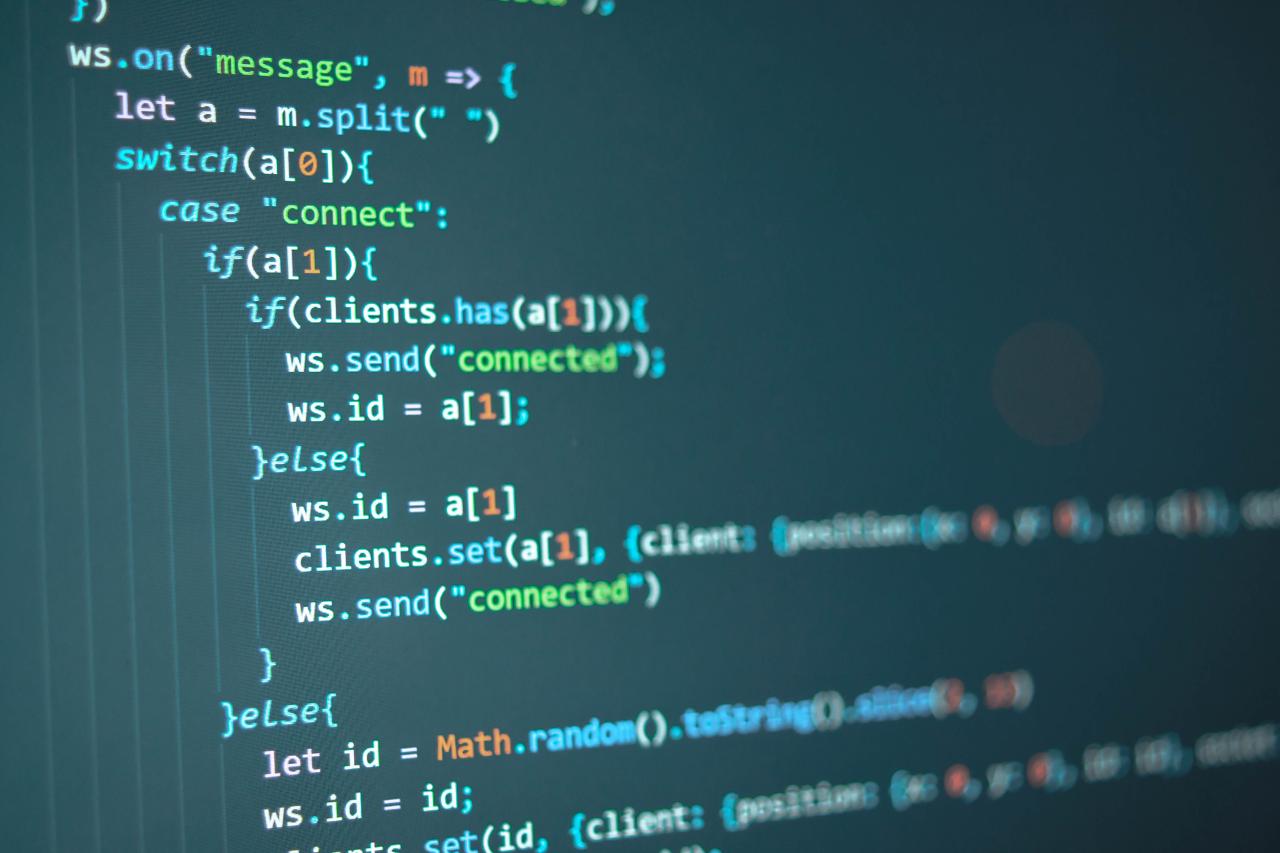
JavaScript is the language that brings websites to life, allowing for interactive elements and dynamic content. For beginners, learning JavaScript opens doors to a world of web development possibilities. It allows for the creation of interactive web pages, web applications, and even mobile applications.
The Role of JavaScript in Web Development
JavaScript’s primary function in web development is to add interactivity and dynamic behavior to websites. It runs directly within a web browser, allowing developers to manipulate the Document Object Model (DOM), respond to user events, and communicate with servers.JavaScript empowers developers to:
- Create interactive elements: This includes things like image carousels, form validation, and animations.
- Update content dynamically: Without requiring page reloads, JavaScript can modify the content displayed on a webpage in real-time.
- Handle user interactions: JavaScript enables websites to respond to user actions, such as button clicks, mouse movements, and form submissions.
- Communicate with servers: Through techniques like AJAX, JavaScript can send requests to and receive data from servers, enabling features like dynamic content loading and data retrieval.
A Brief History of JavaScript
JavaScript was created in 1995 by Brendan Eich at Netscape. Initially known as Mocha, it was quickly renamed JavaScript to capitalize on the popularity of Java.
- 1995: JavaScript is created by Brendan Eich.
- 1996: Netscape submits JavaScript to ECMA International for standardization.
- 1997: The first ECMAScript standard (ECMA-262) is published, which defines the core of JavaScript.
- Modern Era: JavaScript continues to evolve, with new versions of ECMAScript (e.g., ES6, ES7, etc.) introducing new features and improvements. Frameworks and libraries like React, Angular, and Vue.js have emerged, revolutionizing web development.
JavaScript’s early development was rapid, driven by the need for a scripting language that could make web pages more dynamic. This rapid evolution, alongside the standardization by ECMA International, helped establish JavaScript as the standard scripting language for the web.
Benefits of Learning JavaScript for Beginners
Learning JavaScript offers several advantages for beginners in the world of programming and web development.
- High Demand: JavaScript is one of the most in-demand programming languages in the job market, opening up numerous career opportunities.
- Versatility: JavaScript can be used for front-end web development (creating the user interface), back-end web development (using Node.js), and even mobile app development (using frameworks like React Native).
- Large Community: JavaScript boasts a massive and active community, providing ample resources, tutorials, and support for learners.
- Relatively Easy to Learn: While complex projects are possible, the fundamentals of JavaScript are relatively accessible, making it a good starting point for beginners.
- Immediate Feedback: The ability to see the results of your code directly in a web browser provides immediate feedback, making the learning process more engaging.
The Difference Between JavaScript, HTML, and CSS
HTML, CSS, and JavaScript work together to create the structure, style, and behavior of a webpage. They are often referred to as the “trinity” of front-end web development.
- HTML (HyperText Markup Language): HTML provides the structure and content of a webpage. It defines elements like headings, paragraphs, images, and links. Think of HTML as the skeleton of the website.
- CSS (Cascading Style Sheets): CSS is responsible for the visual presentation of a webpage. It controls the layout, colors, fonts, and overall design. CSS styles the skeleton, adding the skin and clothes.
- JavaScript: JavaScript adds interactivity and dynamic behavior to a webpage. It allows you to make the webpage respond to user actions, update content dynamically, and communicate with servers. JavaScript brings the website to life, making it interactive and dynamic.
To illustrate, consider building a house:
- HTML is the foundation, walls, and roof – the basic structure.
- CSS is the paint, furniture, and decorations – the styling.
- JavaScript is the electrical wiring, plumbing, and smart home features – the interactive elements.
They work together to create a functional and engaging user experience.
Setting Up Your Development Environment

To begin your JavaScript journey, you’ll need to set up your development environment. This involves choosing the right tools and configuring them to write and run your JavaScript code. A well-configured environment streamlines the coding process and facilitates debugging, leading to a more efficient and enjoyable learning experience.
Necessary Tools for JavaScript Coding
Choosing the right tools is crucial for a smooth coding experience. The essential tools for JavaScript development are a text editor and a web browser.
- Text Editor: This is where you’ll write your JavaScript code. There are many options available, ranging from simple text editors to more advanced Integrated Development Environments (IDEs). Some popular choices include:
- Visual Studio Code (VS Code): A free, open-source editor with extensive features, including syntax highlighting, code completion, and debugging tools. It’s highly customizable and supports a vast library of extensions.
- Sublime Text: A powerful, cross-platform text editor known for its speed and versatility. It offers excellent code navigation and customization options.
- Atom: Another open-source editor developed by GitHub. It is highly customizable and offers a variety of packages to enhance your coding workflow.
- Notepad++ (Windows): A free and simple text editor that’s a good option for beginners.
- Web Browser: Web browsers are essential for running and testing your JavaScript code. They provide a built-in JavaScript engine (like V8 in Chrome or SpiderMonkey in Firefox) that interprets and executes your code. Popular browsers include:
- Google Chrome: Known for its excellent developer tools and fast JavaScript performance.
- Mozilla Firefox: Offers powerful debugging tools and a strong focus on web standards.
- Microsoft Edge: A modern browser built on the Chromium engine, providing good performance and developer tools.
- Safari: The default browser for macOS, offering good performance and integration with Apple’s ecosystem.
Setting Up a Simple HTML File to Include JavaScript
To run your JavaScript code, you need to include it within an HTML file. This allows the browser to load and execute your JavaScript code.
Here’s how to set up a basic HTML file:
- Create an HTML File: Use your text editor to create a new file and save it with an “.html” extension (e.g., “index.html”).
- Basic HTML Structure: Add the basic HTML structure to your file:
“`html
“`
- Include JavaScript: Within the ` ` section, add the ````
Make sure the "script.js" file is in the same directory as your HTML file, or provide the correct path to the file.
- Save and Open: Save your HTML file and open it in your web browser. You should see the "Hello, World!" heading displayed on the page.
Using the Console for Debugging
The browser's console is an invaluable tool for debugging your JavaScript code. It allows you to see error messages, inspect variable values, and track the execution of your code.
Here's how to use the console:
- Open the Developer Tools: In most browsers, you can open the developer tools by right-clicking on the webpage and selecting "Inspect" or "Inspect Element." Alternatively, you can use keyboard shortcuts (e.g., F12 or Ctrl+Shift+I).
- Navigate to the Console Tab: Within the developer tools, there's a "Console" tab. This is where you'll see messages logged by your JavaScript code, as well as any error messages.
- Using `console.log()`: The `console.log()` function is your primary tool for debugging. It allows you to print messages to the console.
Example:
```javascriptconsole.log("This message will appear in the console.");```
You can also use `console.warn()` for warnings and `console.error()` for error messages. For example, if you're working on a form validation, you can use the console to check whether the data is valid before submitting it.
Designing a Basic "Hello, World!" Program Using JavaScript
The "Hello, World!" program is a classic introductory program in programming. It demonstrates the basic syntax of a language and confirms that your environment is set up correctly.
Here's a "Hello, World!" program using JavaScript:
```javascript
// This is a comment. It won't be executed.
console.log("Hello, World!"); // This line prints "Hello, World!" to the console.
```In this code:
- The `//` characters indicate a comment. Comments are ignored by the JavaScript engine and are used to explain the code.
- `console.log()` is a function that prints a message to the console.
- The text "Hello, World!" is a string literal, which is enclosed in double quotes.
When you run this code within your HTML file, the message "Hello, World!" will appear in your browser's console. This confirms that your JavaScript code is being executed correctly.
Basic JavaScript Syntax and Data Types

JavaScript, as a foundational language for web development, relies on a straightforward syntax and a set of core data types. Understanding these elements is crucial for writing effective and functional code. This section will delve into the essential building blocks of JavaScript, providing a clear understanding of variables, data types, and fundamental operations.
JavaScript Variables and Declaration
Variables in JavaScript serve as containers for storing data values. Declaring variables allows you to refer to and manipulate data within your code. JavaScript offers three primary s for declaring variables: `var`, `let`, and `const`.
- var: This was traditionally used for variable declaration in JavaScript. However, it has some scope-related quirks that can lead to unexpected behavior. Variables declared with `var` are function-scoped, meaning they are accessible throughout the entire function in which they are declared. If declared outside of a function, they are globally scoped. Due to potential scoping issues, `var` is less commonly used in modern JavaScript development.
- let: The `let` , introduced in ES6 (ECMAScript 2015), provides block-scoped variables. This means a variable declared with `let` is only accessible within the block of code (e.g., within an `if` statement, a `for` loop, or a code block enclosed in curly braces ``) where it is defined. This promotes cleaner and more predictable code.
- const: The `const` is also introduced in ES6, used to declare constants. Constants are variables whose values cannot be reassigned after they are initialized. Like `let`, `const` is block-scoped. It is best practice to use `const` when the value of a variable should not change throughout the program's execution.
Example:
  // Using var (less common, function-scoped)

  function myFunction()

    var x = 10;

    if (true)

      var x = 20; // This re-declares x within the function scope

      console.log(x); // Output: 20
console.log(x); // Output: 20 (because of function scope)
myFunction();
// Using let (block-scoped)
function myOtherFunction()
let y = 10;
if (true)
let y = 20; // This declares a new y within the if block
console.log(y); // Output: 20console.log(y); // Output: 10 (because of block scope)
myOtherFunction();
// Using const (block-scoped, cannot be reassigned)
const z = 30;
// z = 40; // This would cause an error because you cannot reassign a constant
console.log(z); // Output: 30
JavaScript Data Types
JavaScript is a dynamically typed language, meaning you don't need to explicitly declare the data type of a variable. The type is determined at runtime. JavaScript has several built-in data types, which can be categorized into primitive and object types. Understanding these data types is crucial for working with different kinds of data in your code.
The following table provides a comprehensive overview of JavaScript's primary data types, including examples and descriptions:
Data Type Description Example Notes String Represents textual data, enclosed in single or double quotes. "Hello, world!",'JavaScript'Strings are immutable, meaning their values cannot be changed directly after creation. Number Represents numerical values, including integers and floating-point numbers. 10,3.14,-5JavaScript uses double-precision 64-bit floating-point format (IEEE 754). Boolean Represents a logical value, either trueorfalse.true,falseOften used in conditional statements and logical operations. Null Represents the intentional absence of a value. let myVariable = null;Indicates that a variable has no value. It is important to distinguish null from undefined. Undefined Represents a variable that has been declared but has not been assigned a value. let myVariable;A variable is automatically assigned undefined if no value is provided during declaration. Symbol Represents a unique and immutable primitive value. const mySymbol = Symbol('description');Symbols are often used as property keys in objects to avoid naming collisions. Object Represents a collection of key-value pairs. name: "John", age: 30Objects are a fundamental data type in JavaScript and can contain various data types. Basic Arithmetic Operations in JavaScript
JavaScript supports a range of arithmetic operators to perform mathematical calculations. These operators are essential for manipulating numerical data and building dynamic applications.
Here are some of the most common arithmetic operators:
- Addition (+): Adds two numbers.
- Subtraction (-): Subtracts one number from another.
- Multiplication (*): Multiplies two numbers.
- Division (/): Divides one number by another.
- Modulo (%): Returns the remainder of a division.
- Increment (++): Increases the value of a variable by 1.
- Decrement (--): Decreases the value of a variable by 1.
Example:
  let a = 10;

  let b = 5;
let sum = a + b; // sum will be 15
let difference = a - b; // difference will be 5
let product = a
- b; // product will be 50
let quotient = a / b; // quotient will be 2
let remainder = a % b; // remainder will be 0a++; // a will be 11 (increment)
b--; // b will be 4 (decrement)console.log(sum, difference, product, quotient, remainder, a, b); // Output: 15 5 50 2 0 11 4
Operators and Control Flow
Operators and control flow are fundamental concepts in JavaScript, enabling you to manipulate data and control the execution of your code. Operators perform operations on values, while control flow structures dictate the order in which statements are executed. Mastering these concepts is crucial for building dynamic and interactive web applications.
Different Types of Operators in JavaScript
JavaScript provides various operators to perform different types of operations. Understanding these operators is essential for writing effective and efficient code. They are categorized based on the types of operations they perform.
- Arithmetic Operators: These operators perform mathematical calculations.
- Addition (+): Adds two operands. Example:
let sum = 5 + 3; // sum will be 8 - Subtraction (-): Subtracts the second operand from the first. Example:
let difference = 10 - 4; // difference will be 6 - Multiplication (*): Multiplies two operands. Example:
let product = 2

- 6; // product will be 12 - Division (/): Divides the first operand by the second. Example:
let quotient = 15 / 3; // quotient will be 5 - Modulo (%) : Returns the remainder of a division. Example:
let remainder = 10 % 3; // remainder will be 1 - Increment (++) : Increases the value of a variable by
1. Example:let x = 5; x++; // x will be 6 - Decrement (--) : Decreases the value of a variable by
1. Example:let y = 10; y--; // y will be 9 - Comparison Operators: These operators compare two values and return a boolean value (true or false).
- Equal to (==): Checks if two values are equal (performs type coercion). Example:
5 == "5"; // true - Strictly equal to (===): Checks if two values are equal and of the same type. Example:
5 === "5"; // false - Not equal to (!=): Checks if two values are not equal (performs type coercion). Example:
5 != "6"; // true - Strictly not equal to (!==): Checks if two values are not equal or of different types. Example:
5 !== "5"; // true - Greater than (>): Checks if the first value is greater than the second. Example:
10 > 5; // true - Less than (<): Checks if the first value is less than the second. Example:
5 < 10; // true - Greater than or equal to (>=): Checks if the first value is greater than or equal to the second. Example:
10 >= 10; // true - Less than or equal to (<=): Checks if the first value is less than or equal to the second. Example:
5 <= 10; // true - Logical Operators: These operators combine boolean values to produce a single boolean result.
- Logical AND (&&): Returns true if both operands are true. Example:
(5 > 3) && (10 < 20); // true - Logical OR (||): Returns true if at least one operand is true. Example:
(5 > 3) || (10 > 20); // true - Logical NOT (!): Inverts the boolean value of an operand. Example:
!(5 > 3); // false - Assignment Operators: These operators assign values to variables.
- Simple assignment (=): Assigns the value on the right to the variable on the left. Example:
let x = 10; - Addition assignment (+=): Adds the right operand to the left operand and assigns the result to the left operand. Example:
let x = 5; x += 3; // x will be 8 - Subtraction assignment (-=): Subtracts the right operand from the left operand and assigns the result to the left operand. Example:
let x = 10; x -= 4; // x will be 6 - Multiplication assignment (*=): Multiplies the left operand by the right operand and assigns the result to the left operand. Example:
let x = 2; x

-= 6; // x will be 12 - Division assignment (/=): Divides the left operand by the right operand and assigns the result to the left operand. Example:
let x = 15; x /= 3; // x will be 5 - Modulo assignment (%=): Calculates the remainder of the division of the left operand by the right operand and assigns the result to the left operand. Example:
let x = 10; x %= 3; // x will be 1
Using Conditional Statements
Conditional statements allow you to execute different blocks of code based on certain conditions. They are essential for creating logic and making decisions in your JavaScript programs.
- if statement: Executes a block of code if a specified condition is true.
- else if statement: Specifies a new condition to test if the previous condition is false.
- else statement: Executes a block of code if none of the preceding conditions are true.
Example:
  let age = 20;

  if (age >= 18)

console.log("You are an adult.");Example:
  let score = 75;

  if (score >= 90)

  console.log("Grade: A");

   else if (score >= 80)

  console.log("Grade: B");

   else if (score >= 70)

console.log("Grade: C");Example:
  let temperature = 25;

  if (temperature > 30)

  console.log("It's hot outside.");

   else if (temperature > 20)

  console.log("It's a pleasant day.");

   else

  console.log("It's cool outside.");
Using Loops in JavaScript
Loops are used to execute a block of code repeatedly. They are crucial for automating tasks and iterating over data. JavaScript offers several types of loops to handle different scenarios.
- for loop: Executes a block of code a specific number of times.
- while loop: Executes a block of code as long as a specified condition is true.
- do...while loop: Executes a block of code at least once, and then repeats as long as a specified condition is true.
Example:
  for (let i = 0; i < 5; i++)

console.log(i); // Output: 0, 1, 2, 3, 4Example:
  let count = 0;

  while (count < 3)

  console.log(count); // Output: 0, 1, 2

count++;Example:
  let i = 0;

  do

  console.log(i); // Output: 0, 1, 2

  i++;

   while (i < 3);
Functions in JavaScript

Functions are fundamental building blocks in JavaScript, essential for writing clean, reusable, and maintainable code. They encapsulate a block of code that performs a specific task, making your programs more organized and efficient. Understanding functions is crucial for any JavaScript developer.
Defining and Calling Functions
Functions in JavaScript are defined using the `function` , followed by a name, parentheses `()`, and a code block enclosed in curly braces ``. To execute a function, you "call" it by using its name followed by parentheses.For example:```javascriptfunction greet() console.log("Hello, world!");greet(); // Output: Hello, world!```In this example:* `function greet()` defines a function named `greet`.
- `console.log("Hello, world!");` is the code that the function executes.
- `greet();` calls the `greet` function, causing the message to be printed to the console.
Function Parameters and Return Values
Functions can accept input values, known as parameters, which allow them to perform operations on different data. Functions can also return a value using the `return` . This value is the result of the function's operation.Parameters are specified within the parentheses when defining the function. The `return` statement is used to specify the value that the function should output.For example:```javascriptfunction add(a, b) return a + b;let sum = add(5, 3); // sum will be 8console.log(sum);```In this example:* `add(a, b)` defines a function named `add` that takes two parameters, `a` and `b`.
- `return a + b;` calculates the sum of `a` and `b` and returns the result.
- `let sum = add(5, 3);` calls the `add` function with arguments 5 and 3, and stores the returned value in the variable `sum`.
Creating a Function with Parameters and Return Values: Step-by-Step Procedure
Creating functions with parameters and return values involves several steps. This structured approach ensures clarity and maintainability.
- Define the Function's Purpose: Clearly identify the specific task the function will perform. This helps determine the necessary parameters and the expected return value. For instance, let's create a function to calculate the area of a rectangle.
- Choose a Meaningful Name: Select a descriptive name for the function that reflects its purpose. This enhances code readability. Following our example, we could name our function `calculateRectangleArea`.
- Define Parameters: Determine the input values the function needs to accomplish its task. These inputs become the function's parameters. For our rectangle area calculation, we'll need the length and width. Specify these parameters within the parentheses of the function definition. For example: `function calculateRectangleArea(length, width) ...
`
- Write the Function Body: Inside the curly braces ``, write the code that performs the function's task, using the parameters. In our case, we need to calculate the area: `length - width`.
- Return a Value (if necessary): If the function needs to provide an output, use the `return` statement to specify the value to be returned. In our example, we want to return the calculated area. For example: `return length - width;`
- Call the Function: Call the function with appropriate arguments to execute it. The arguments are the actual values you pass to the function when you call it. You can store the returned value in a variable. For example: ```javascript let area = calculateRectangleArea(10, 5); console.log(area); // Output: 50 ```
Here's the complete example:```javascriptfunction calculateRectangleArea(length, width) return length - width;let area = calculateRectangleArea(10, 5);console.log(area); // Output: 50```This demonstrates a complete function definition, parameter handling, and the use of a return value to provide a meaningful result.
Working with the DOM (Document Object Model)
The Document Object Model (DOM) is a crucial concept in web development, particularly when working with JavaScript. It provides a structured representation of an HTML document, enabling JavaScript to interact with and manipulate the content, structure, and style of a webpage dynamically. Understanding the DOM is fundamental to creating interactive and responsive web applications.
Understanding the DOM and Its Relationship to JavaScript
The DOM is a programming interface for HTML and XML documents. It represents the page as a tree-like structure, where each element, attribute, and text within the HTML document becomes a node in the tree. This structure allows JavaScript to access and modify these elements.JavaScript interacts with the DOM to achieve the following:
- Accessing HTML elements.
- Changing the content of HTML elements.
- Modifying the attributes of HTML elements.
- Changing the CSS styles of HTML elements.
- Adding and removing HTML elements.
- Responding to events (e.g., clicks, mouseovers, form submissions).
Essentially, JavaScript acts as the "manipulator" of the DOM, allowing developers to create dynamic and interactive web experiences. Without the DOM, JavaScript would be unable to affect the visual representation of a webpage.
Selecting HTML Elements Using JavaScript
Selecting HTML elements is the first step in manipulating them with JavaScript. There are several methods available, each with its advantages.
getElementById(): This method is used to select a single HTML element by its unique ID attribute. It is the fastest method for selecting elements when you know the ID.getElementsByClassName(): This method returns a collection of HTML elements that have a specific class name. It is useful when you need to select multiple elements with the same class.getElementsByTagName(): This method returns a collection of HTML elements based on their tag name (e.g.,<p>,<div>,<a>).querySelector(): This method returns the first HTML element that matches a specified CSS selector. It is a versatile method that can select elements based on IDs, classes, tag names, and more complex selectors.querySelectorAll(): This method returns aNodeListcontaining all HTML elements that match a specified CSS selector. It is similar toquerySelector()but returns all matching elements instead of just the first one.
Here are some examples:
// Select an element by ID
const elementById = document.getElementById('myElement');

// Select elements by class name
const elementsByClass = document.getElementsByClassName('myClass');

// Select elements by tag name
const elementsByTag = document.getElementsByTagName('p');

// Select the first element with a specific ID using querySelector
const querySelectorById = document.querySelector('#myElement');

// Select all elements with a specific class using querySelectorAll
const querySelectorAllByClass = document.querySelectorAll('.myClass');
Manipulating Content and Attributes of HTML Elements
Once you've selected an HTML element, you can manipulate its content and attributes using JavaScript. This allows you to dynamically update the webpage based on user interaction or other events.
- Changing Content: The
textContentandinnerHTMLproperties are used to modify the content of an HTML element.textContentsets or returns the text content of an element and all its descendants.innerHTMLsets or returns the HTML content (including HTML tags) of an element. UsetextContentwhen you want to avoid any HTML parsing and simply set plain text.Use
innerHTMLwhen you want to inject HTML into the element. - Modifying Attributes: Attributes of HTML elements can be changed using the
setAttribute()method or by directly accessing the attribute as a property (e.g.,element.src = "newImage.jpg").setAttribute()is generally used when setting custom attributes or attributes that may not have a direct property. - Changing Styles: You can modify the CSS styles of an element using the
styleproperty. Each CSS property is accessed as a JavaScript property (e.g.,element.style.color = "red").
Examples:
// Changing text content
const paragraph = document.getElementById('myParagraph');
paragraph.textContent = 'This is new text.';

// Changing HTML content
paragraph.innerHTML = '<strong>This is bold text.</strong>';

// Modifying an attribute
const image = document.getElementById('myImage');
image.setAttribute('src', 'newImage.jpg'); // setAttribute
image.src = 'newImage.jpg'; // directly access the attribute

// Changing CSS style
paragraph.style.color = 'blue';
paragraph.style.fontSize = '16px';
Scenario: Changing Paragraph Content on Button Click
This scenario demonstrates how JavaScript can change the content of a paragraph when a button is clicked.
Here's the HTML structure:
<p id="myParagraph">Initial paragraph content.</p>
<button id="myButton">Click Me</button>
And the JavaScript code:
// Get references to the paragraph and button elements
const paragraph = document.getElementById('myParagraph');
const button = document.getElementById('myButton');

// Add an event listener to the button
button.addEventListener('click', function()
  // Change the paragraph's content when the button is clicked
  paragraph.textContent = 'Paragraph content changed by JavaScript!';
);
Explanation:
1. Select Elements: The JavaScript code first selects the paragraph (
<p>) and button (<button>) elements using their IDs.
2. Add Event Listener: An event listener is attached to the button usingaddEventListener(). This listens for the "click" event.3. Define the Event Handler: The function provided as the second argument to
addEventListener()is the event handler. This function is executed when the button is clicked.
4. Change Content: Inside the event handler, thetextContentproperty of the paragraph is changed to the new text.When the user clicks the button, the JavaScript code executes, and the content of the paragraph changes from "Initial paragraph content." to "Paragraph content changed by JavaScript!". This demonstrates the dynamic nature of web pages and the power of JavaScript to manipulate the DOM. This is a fundamental example of how user interaction can trigger changes on a webpage, providing a more engaging and interactive user experience.
Events and Event Listeners
Events and event listeners are fundamental concepts in JavaScript, enabling interactivity within web pages. They allow developers to make web applications dynamic by responding to user actions and other occurrences. Understanding events and how to handle them is crucial for creating responsive and engaging user experiences.
The Concept of Events in JavaScript
Events in JavaScript represent occurrences that happen in the browser, such as a user clicking a button, the mouse moving over an element, or a key being pressed on the keyboard. These events trigger specific actions defined by the developer. Events are the building blocks of interactivity in web applications.
Events can be categorized based on the type of interaction or occurrence. Common event types include:
- Click Events: Triggered when an element is clicked. For example, a button click.
- Mouse Events: Include events like
mouseover(when the mouse moves over an element),mouseout(when the mouse moves out of an element),mousemove(when the mouse moves within an element), andmousedown/mouseup(when a mouse button is pressed down and released). - Keyboard Events: Events like
keydown(when a key is pressed down),keyup(when a key is released), andkeypress(when a key is pressed and released – often used for character input). - Form Events: Such as
submit(when a form is submitted),change(when the value of an input element changes), andfocus/blur(when an element gains or loses focus). - Window Events: Including
load(when the page finishes loading),resize(when the browser window is resized), andscroll(when the page is scrolled).
Adding Event Listeners to HTML Elements
Event listeners are JavaScript functions that "listen" for specific events on HTML elements. When an event occurs, the event listener executes a predefined block of code, allowing developers to control the behavior of the webpage in response to user actions or other events.
To add an event listener to an HTML element, you use the
addEventListener()method. This method takes two main arguments: the event type (e.g., "click", "mouseover") and a function that will be executed when the event occurs (the event handler).Here's the basic syntax:
element.addEventListener(event, function, useCapture);Where:
elementis the HTML element to which you want to add the event listener.eventis a string specifying the event type (e.g., "click").functionis the function to be executed when the event occurs.useCapture(optional) is a boolean value that specifies whether to use event capturing or event bubbling (more on this later). It's usually set tofalse.
Event Objects and Their Properties
When an event occurs and triggers an event listener, the browser creates an event object. This object contains information about the event, such as the type of event, the element that triggered the event, and the position of the mouse (for mouse events). The event object is passed as an argument to the event handler function.
Some common properties of the event object include:
type: A string representing the event type (e.g., "click").target: The element that triggered the event.currentTarget: The element to which the event listener is attached.clientXandclientY: The horizontal and vertical coordinates of the mouse pointer relative to the browser window (for mouse events).pageXandpageY: The horizontal and vertical coordinates of the mouse pointer relative to the entire document (for mouse events).keyCodeorkey: The key code or character code of the key pressed (for keyboard events).preventDefault(): A method that prevents the default action of the event (e.g., preventing a form from submitting).stopPropagation(): A method that stops the event from bubbling up or capturing down the DOM tree.
Code Example: Adding Event Listeners for Different Events
The following code demonstrates how to add event listeners for different event types to an HTML element (a button). This example illustrates how to create an interactive button that responds to various user actions.
```html
Event Listener Example
```This example does the following:
- It selects the button element with the ID "myButton" and the paragraph element with the ID "output."
- It adds a
clickevent listener to the button. When the button is clicked, the text "Button clicked!" is displayed in the paragraph element, and a message is logged to the console. - It adds a
mouseoverevent listener to the button. When the mouse moves over the button, the button's background color changes to light blue, and a message is logged to the console. - It adds a
mouseoutevent listener to the button. When the mouse moves out of the button, the button's background color is reset, and a message is logged to the console. - It adds a
keypressevent listener to the entire document. When a key is pressed, the key pressed is displayed in the paragraph element, and a message is logged to the console. (Note: for handling user input, consider using event listeners on specific input elements like text fields.)
Arrays in JavaScript
Arrays are fundamental data structures in JavaScript, providing a way to store collections of items. They are essential for organizing and manipulating data in various applications, from simple lists to complex data sets. Understanding arrays is crucial for any JavaScript developer.
Creating Arrays
Arrays can be created in JavaScript using two primary methods: array literals and the `Array` constructor. Array literals are generally preferred due to their conciseness and readability.Creating arrays using array literals:
This is the most common and recommended way.
Example:```javascriptlet myArray = [1, 2, 3, "hello", true];```
Creating arrays using the `Array` constructor:
This method is less common but can be useful in certain scenarios.Example:```javascriptlet myArray = new Array(1, 2, 3, "hello", true);```
It's important to note that when using the `Array` constructor with a single numeric argument, it creates an array with the specified length, not an array containing that number as an element. For example, `new Array(5)` creates an array of length 5, not an array containing the number 5.Common Array Methods
JavaScript provides a rich set of built-in methods for manipulating arrays. These methods enable developers to add, remove, and modify elements, as well as perform other operations on array data.Here are some of the most frequently used array methods:
- `push()`: Adds one or more elements to the end of an array.
- `pop()`: Removes the last element from an array and returns it.
- `shift()`: Removes the first element from an array and returns it.
- `unshift()`: Adds one or more elements to the beginning of an array.
- `splice()`: Adds or removes elements from an array at a specific index. It can modify the original array.
- `slice()`: Returns a shallow copy of a portion of an array into a new array object. It does not modify the original array.
- `concat()`: Merges two or more arrays.
- `indexOf()`: Returns the first index at which a given element can be found in the array, or -1 if it is not present.
- `includes()`: Determines whether an array includes a certain value among its entries, returning `true` or `false` as appropriate.
Examples:```javascriptlet myArray = [1, 2, 3];myArray.push(4); // myArray is now [1, 2, 3, 4]let lastElement = myArray.pop(); // lastElement is 4, myArray is now [1, 2, 3]let firstElement = myArray.shift(); // firstElement is 1, myArray is now [2, 3]myArray.unshift(0); // myArray is now [0, 2, 3]myArray.splice(1, 1, 5); // myArray is now [0, 5, 3] (removes one element at index 1, and inserts 5)let slicedArray = myArray.slice(0, 2); // slicedArray is [0, 5], myArray remains [0, 5, 3]let newArray = myArray.concat([6, 7]); // newArray is [0, 5, 3, 6, 7], myArray remains [0, 5, 3]let index = myArray.indexOf(5); // index is 1let hasThree = myArray.includes(3); // hasThree is true```
Iterating Through Arrays Using Loops
Iterating through arrays is a common task. JavaScript provides several ways to loop through arrays, each with its own advantages. The choice of loop depends on the specific needs of the task.Commonly used loop structures:
- `for` loop: The most basic loop, providing control over the starting point, ending condition, and increment.
- `for...of` loop: Iterates over the values of an array directly.
- `for...in` loop: Iterates over the indices (keys) of an array (less common for arrays, more suitable for objects).
- `forEach()` method: Executes a provided function once for each array element.
Examples:```javascriptlet myArray = [10, 20, 30, 40, 50];// Using a for loopfor (let i = 0; i < myArray.length; i++) console.log("Element at index " + i + ": " + myArray[i]); // Using a for...of loop for (let element of myArray) console.log("Element: " + element); // Using forEach() method myArray.forEach(function(element, index) console.log("Element at index " + index + ": " + element); ); ```
Sorting Arrays
Sorting arrays is a frequently required operation. JavaScript's built-in `sort()` method can be used to sort arrays, but it requires a custom comparison function for numeric sorting. By default, the `sort()` method sorts elements as strings.Sorting numbers in ascending order:
To sort an array of numbers in ascending order, provide a comparison function that subtracts the two numbers.Example:```javascriptlet numbers = [3, 1, 4, 1, 5, 9, 2, 6];numbers.sort(function(a, b) return a - b;);// numbers is now [1, 1, 2, 3, 4, 5, 6, 9]```Sorting numbers in descending order:
To sort an array of numbers in descending order, reverse the order of the subtraction in the comparison function.
Example:```javascriptlet numbers = [3, 1, 4, 1, 5, 9, 2, 6];numbers.sort(function(a, b) return b - a;);// numbers is now [9, 6, 5, 4, 3, 2, 1, 1]```Objects in JavaScript
JavaScript objects are fundamental building blocks for organizing and structuring data. They allow you to represent real-world entities and their associated properties and behaviors within your code. Understanding objects is crucial for writing more complex and maintainable JavaScript applications.
Creating JavaScript Objects
Objects in JavaScript are collections of key-value pairs, where keys are strings (or symbols) and values can be any valid JavaScript data type, including other objects. They are created using object literals (curly braces ``) or the `new` with the `Object()` constructor.
- Object Literals: The most common way to create an object.
Here's an example of creating a simple object using an object literal:
let person =
  firstName: "John",
  lastName: "Doe",
  age: 30,
  occupation: "Developer"
;
In this example, `person` is an object with properties like `firstName`, `lastName`, `age`, and `occupation`. Each property has a corresponding value.
- Using the `new` : This is less common but valid.
You can also create objects using the `new` and the `Object()` constructor:
let anotherPerson = new Object();
anotherPerson.firstName = "Jane";
anotherPerson.lastName = "Smith";
anotherPerson.age = 25;
This method is more verbose and generally less preferred than object literals.
Accessing Object Properties and Methods
Once an object is created, you can access its properties using either dot notation or bracket notation. If a property holds a function, it's called a method, and you can invoke it using parentheses `()`.
- Dot Notation: The most common and readable way to access properties.
Using dot notation, you directly access the property name after the object name, separated by a dot:
console.log(person.firstName); // Output: John console.log(person.age); // Output: 30- Bracket Notation: Useful when the property name is stored in a variable or contains spaces or special characters.
Bracket notation uses square brackets and the property name as a string:
console.log(person["firstName"]); // Output: John let propertyName = "age"; console.log(person[propertyName]); // Output: 30- Accessing Methods: If a property is a function, it is called a method.
To call a method, you use parentheses `()` after the property name, just like calling a regular function.
let calculator =
  add: function(a, b)
    return a + b;

;
console.log(calculator.add(5, 3)); // Output: 8
Adding, Modifying, and Deleting Object Properties
JavaScript objects are dynamic, meaning you can add, modify, and delete properties after the object has been created.
- Adding Properties: You can add new properties using dot or bracket notation.
To add a new property, simply assign a value to a non-existent property name:
person.city = "New York"; // Adds a "city" property person["country"] = "USA"; // Adds a "country" property- Modifying Properties: You can change the value of an existing property using dot or bracket notation.
To modify a property, reassign a new value to the existing property:
person.age = 31; // Modifies the "age" property person["occupation"] = "Software Engineer"; // Modifies the "occupation" property- Deleting Properties: The `delete` operator is used to remove properties from an object.
The `delete` operator removes a property from the object. Note that this removes the property itself, not just its value.
delete person.age; // Removes the "age" property
console.log(person.age); // Output: undefined
Detailed Example: The `Person` Object
Let's create a more detailed example of a `Person` object with various properties and methods to illustrate object capabilities.
let person =
  firstName: "Alice",
  lastName: "Johnson",
  age: 28,
  occupation: "Data Scientist",
  address:
    street: "123 Main St",
    city: "Anytown",
    zipCode: "12345"
  ,
  hobbies: ["reading", "coding", "hiking"],
  getFullName: function()
    return this.firstName + " " + this.lastName;
  ,
  getAgeInYears: function()
    return this.age;
  ,
  changeOccupation: function(newOccupation)
    this.occupation = newOccupation;
  ,
  addHobby: function(newHobby)
    this.hobbies.push(newHobby);

;
This `person` object demonstrates several features:
- Nested Object: The `address` property is itself an object.
- Array: The `hobbies` property is an array.
- Methods: `getFullName`, `getAgeInYears`, `changeOccupation`, and `addHobby` are methods that perform actions related to the person object.
Here's how you might use this `person` object:
console.log(person.getFullName()); // Output: Alice Johnson
console.log(person.address.city); // Output: Anytown
console.log(person.hobbies[0]); // Output: reading
person.changeOccupation("Senior Data Scientist");
console.log(person.occupation); // Output: Senior Data Scientist
person.addHobby("traveling");
console.log(person.hobbies); // Output: ["reading", "coding", "hiking", "traveling"]
This detailed example showcases the power and flexibility of JavaScript objects in representing complex data structures and behaviors.
Best Practices and Resources
JavaScript best practices and readily available resources are crucial for writing efficient, maintainable, and understandable code. Adhering to these guidelines, along with leveraging external materials, helps beginners avoid common pitfalls and fosters a strong foundation in JavaScript development. This section details these best practices and provides a curated list of resources for continuous learning.
Coding Best Practices for JavaScript
Implementing best practices significantly improves code quality and readability. Following these practices will lead to more maintainable and less error-prone JavaScript.
- Consistent Formatting: Employ consistent indentation, spacing, and line breaks. Use a code formatter like Prettier or ESLint to automatically enforce these rules. This ensures that the code is easy to read and visually organized. For instance, a standard indentation of four spaces is commonly used.
- Meaningful Variable and Function Names: Choose descriptive names that clearly indicate the purpose of variables and functions. Avoid abbreviations and single-letter names unless they are used for loop counters. For example, use `userName` instead of `un` and `calculateTotalAmount` instead of `calc`.
- Comments: Write comments to explain complex logic, the purpose of functions, and the functionality of non-obvious code sections. Comments should clarify
-why* the code is written the way it is, not just
-what* it does. For instance:// Calculate the total price of items in the cart function calculateTotalPrice(items) // ... implementation ... - Modularity and Reusability: Break down code into smaller, reusable functions and modules. This promotes code reuse and makes debugging easier. For example, a function to validate an email address can be reused across multiple forms.
- Error Handling: Implement robust error handling using `try...catch` blocks to gracefully handle exceptions. Log errors to the console or a server for debugging purposes. For example:
try // Code that might throw an error const result = someFunction(); catch (error) console.error("An error occurred:", error); // Handle the error (e.g., display an error message to the user) - Avoid Global Variables: Minimize the use of global variables to prevent naming conflicts and make code easier to reason about. Use local variables and scope properly. Consider using the `let` and `const` s to declare variables.
- Use `const` and `let`: Declare variables using `const` for values that will not be reassigned and `let` for variables that will change. This enhances code clarity and helps prevent accidental modifications.
- Keep Functions Short: Aim for functions that perform a single, well-defined task. This improves readability and makes functions easier to test and maintain.
- Test Your Code: Write unit tests to ensure your code functions as expected. Tools like Jest or Mocha can be used for testing.
- Optimize for Performance: Avoid unnecessary calculations and operations, especially within loops. Optimize code for speed and efficiency.
Resources for Further Learning
A wide array of resources exists to aid in the learning and mastery of JavaScript. These resources cater to different learning styles and experience levels.
- Websites:
- MDN Web Docs (Mozilla Developer Network): Provides comprehensive documentation on JavaScript, HTML, and CSS. It's an invaluable resource for understanding language features, APIs, and best practices.
- freeCodeCamp: Offers interactive coding challenges and projects to learn JavaScript and web development.
- Codecademy: Provides interactive courses and projects for learning JavaScript and other programming languages.
- W3Schools: Offers tutorials and references for web technologies, including JavaScript.
- DevDocs: Aggregates documentation from various sources, including MDN and other libraries, into a single searchable interface.
- Tutorials:
- YouTube Channels: Channels such as "freeCodeCamp.org," "Traversy Media," and "The Net Ninja" offer video tutorials on various JavaScript topics.
- Udemy and Coursera: Platforms that host numerous JavaScript courses, from beginner to advanced levels, taught by experienced instructors.
- Scrimba: Offers interactive coding tutorials with screen recordings.
- Documentation:
- JavaScript.info: Offers a comprehensive and in-depth guide to JavaScript, covering language fundamentals and advanced topics.
- ECMAScript Specification: The official specification for JavaScript, providing the most authoritative information on the language.
- Online Communities:
- Stack Overflow: A question-and-answer website where developers can ask and answer questions about JavaScript and other programming topics.
- Reddit (r/javascript): A community for discussing JavaScript, sharing resources, and asking questions.
Writing Clean and Readable JavaScript Code
Clean and readable code is characterized by its clarity, conciseness, and ease of understanding. Following these practices ensures that your code is maintainable and collaborative.
- Consistent Formatting: Use a consistent code style throughout your project. Employ a code formatter (like Prettier or ESLint with a code style guide) to automatically format your code.
- Meaningful Names: Use descriptive variable and function names that reflect their purpose.
- Comments: Add comments to explain complex logic or non-obvious code sections.
- Avoid Code Duplication: Refactor your code to avoid repeating the same code blocks. Use functions to encapsulate reusable logic.
- Use Whitespace: Use whitespace (blank lines, indentation, and spacing) to improve readability. Separate logical blocks of code with blank lines.
- Keep Lines Short: Limit line length to improve readability. Consider breaking long lines into multiple lines.
- Modular Design: Break down complex tasks into smaller, manageable functions.
- Avoid Nested Structures: Limit the nesting depth of `if` statements and loops.
Common JavaScript Errors and How to Avoid Them
JavaScript errors can hinder program execution and cause unexpected behavior. Understanding these common errors and their prevention is essential for effective JavaScript development.
- TypeError: Occurs when you try to perform an operation on a value of an incorrect type (e.g., calling a method on a `null` or `undefined` variable, or trying to access a property of a non-object).
How to Avoid:
- Check if a variable is `null` or `undefined` before using it.
- Ensure that you are calling methods on the correct data types.
- Use optional chaining (`?.`) to safely access properties of potentially null or undefined objects.
- ReferenceError: Occurs when you try to use a variable that has not been declared or is out of scope.
How to Avoid:
- Declare all variables before using them.
- Ensure that variables are in the correct scope.
- Double-check variable names for typos.
- SyntaxError: Occurs when your code violates JavaScript's syntax rules (e.g., missing parentheses, semicolons, or brackets, or using an invalid character).
How to Avoid:
- Carefully check your code for syntax errors.
- Use a code editor with syntax highlighting.
- Use a linter (like ESLint) to automatically detect syntax errors.
- TypeError: Cannot read properties of undefined (reading 'property') Occurs when you try to access a property of an object that is `undefined`. This often happens when a variable isn't initialized or when an API call returns unexpected results.
How to Avoid:
- Ensure objects are properly initialized before accessing their properties.
- Check the return values of API calls for `undefined` values.
- Use optional chaining (`?.`) to safely access properties of potentially undefined objects.
- Logic Errors: Errors in the program's logic that cause it to produce incorrect results. These are often the hardest to detect.
How to Avoid:
- Thoroughly test your code with different inputs.
- Use a debugger to step through your code and examine variable values.
- Review your code carefully and ensure that it implements the intended logic.
- Uncaught TypeError: Cannot read properties of null (reading 'property') This error occurs when you attempt to access a property or method of an object that is `null`. It typically happens when an element is not found in the DOM, or when a variable that should contain an object is unexpectedly set to `null`.
How to Avoid:
- Always check if an element exists in the DOM before attempting to access its properties. For instance, using `document.querySelector` and checking for a non-null return value.
- Ensure that variables intended to hold objects are properly initialized and that their values are not unexpectedly set to `null`.
- Use optional chaining (`?.`) to access properties of potentially null objects.
Concluding Remarks
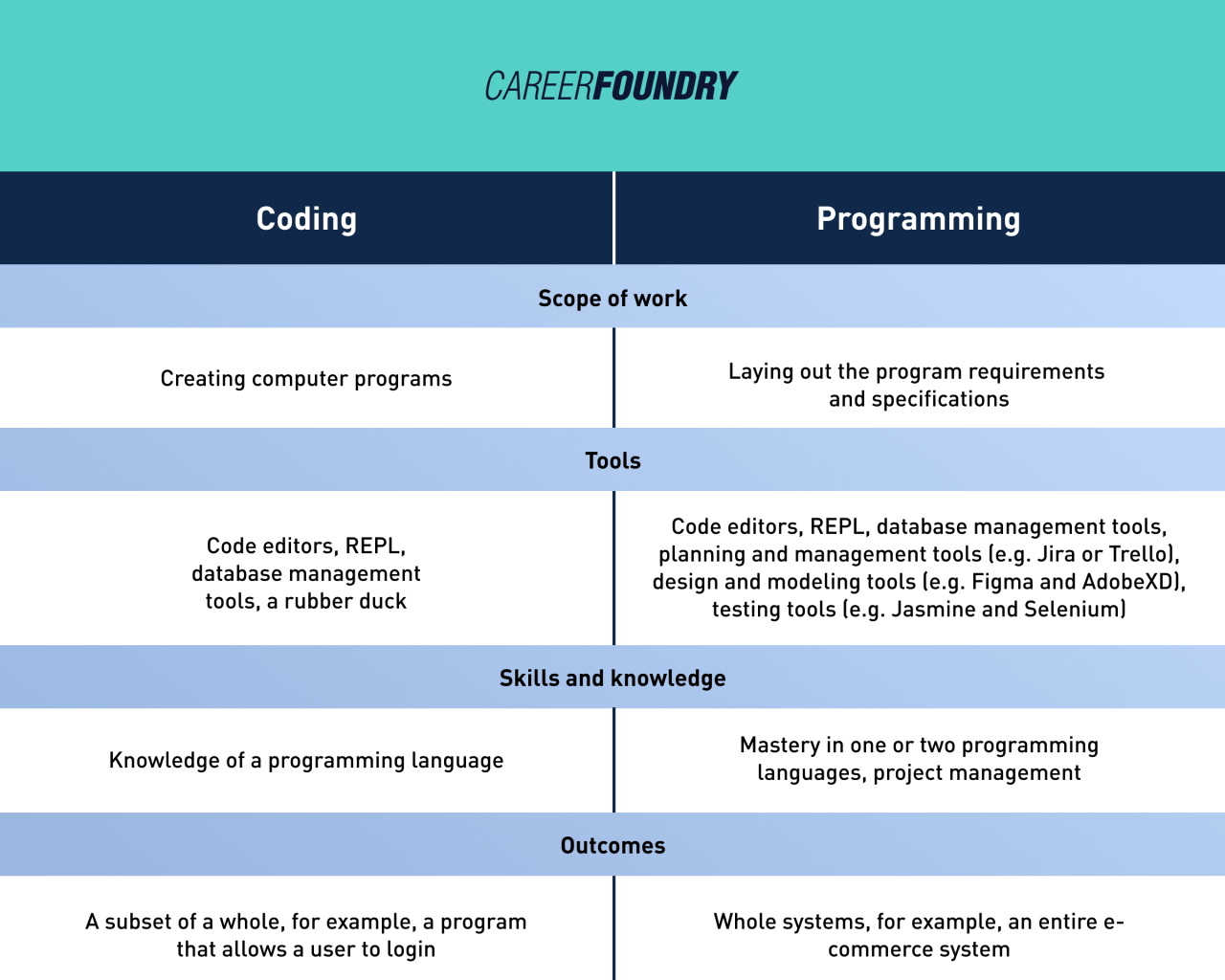
In conclusion, this comprehensive guide serves as a stepping stone to mastering JavaScript. We've covered essential concepts, from the fundamentals to practical applications, equipping you with the knowledge to start building interactive and dynamic web experiences. Remember, the key to success lies in consistent practice and exploration. Embrace the challenges, experiment with the code, and continue to learn – the world of JavaScript is vast and full of exciting possibilities.